
Ever hit delete and instantly regretted it? Yeah, I’ve been there too. That sinking feeling when a Snap disappears before you meant it to—it’s real.
On Snapchat, everything moves fast. That’s kind of the point, right? Snaps vanish after being viewed, and sometimes, they’re gone even before you get a second look.
But here’s the thing—sometimes a Snap disappears not because you meant it to, but because of a slip, a glitch, or a setting you didn’t know about. And when that happens, it’s easy to panic.
So, the big question is: can you get those Snaps back? The answer is… maybe. It depends on a few things, but don’t worry—we’re going to walk through it together.
I’ll show you a few ways you might be able to recover those Snaps and, more importantly, how to stop it from happening again.
Let’s take a deeper look at why Snaps disappear in the first place. Understanding the cause helps you figure out what to do next.
Why do Snaps disappear?
1. Accidental Tap Chaos
You know how it goes. You’re scrolling, tapping, maybe a little distracted… and boom, Snap gone.
A simple slip of the finger is all it takes. Accidental deletions happen more than you’d think, especially when you’re moving quickly through the app.
Best thing you can do? Slow down just a bit and double-check before swiping or tapping. It’s a small habit that can save you a lot of heartache.
2. Snapchat’s Auto-Delete Feature
Snapchat is built around the idea of disappearing messages. That’s part of the fun—but also part of the problem. Once someone views your Snap, it usually disappears right after… unless you’ve saved it to Memories.
If you didn’t change the settings, Snapchat might be deleting your Snaps by design. So, it’s important to know how those settings work so you’re not caught off guard.
3. Tech Glitches Happen
Sometimes, it’s not you at all. It’s the app. Or your phone. Glitches can mess with how Snapchat behaves Snaps might not save properly, or they might vanish unexpectedly. Keeping your app and phone updated is one way to avoid these little tech hiccups.
Now that you have a better idea of what might have gone wrong, let’s figure out how to fix it. Ready? Let’s go.
Can you recover deleted Snaps?
Okay, here’s the part you’ve been waiting for. Let’s see if we can bring those Snaps back.
I’ll guide you through a few methods, and we’ll start with the easiest ones first. If one doesn’t work, don’t worry—move on to the next.
#1 Check Your Memories
Before we try anything complicated, let’s check the most obvious place—Memories. Snapchat might’ve saved your Snap there without you realizing it.
Here’s what you need to do:
- Open Snapchat and swipe up from the camera screen.
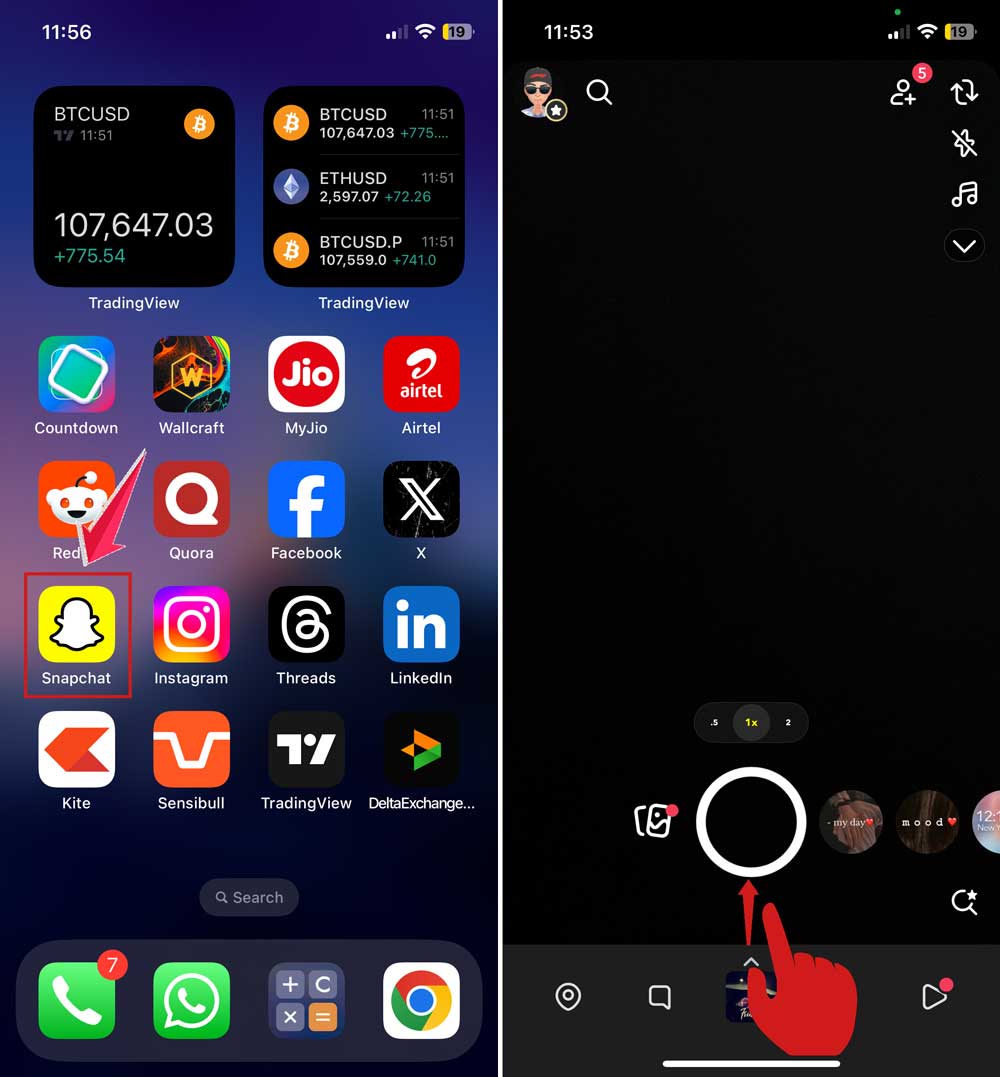
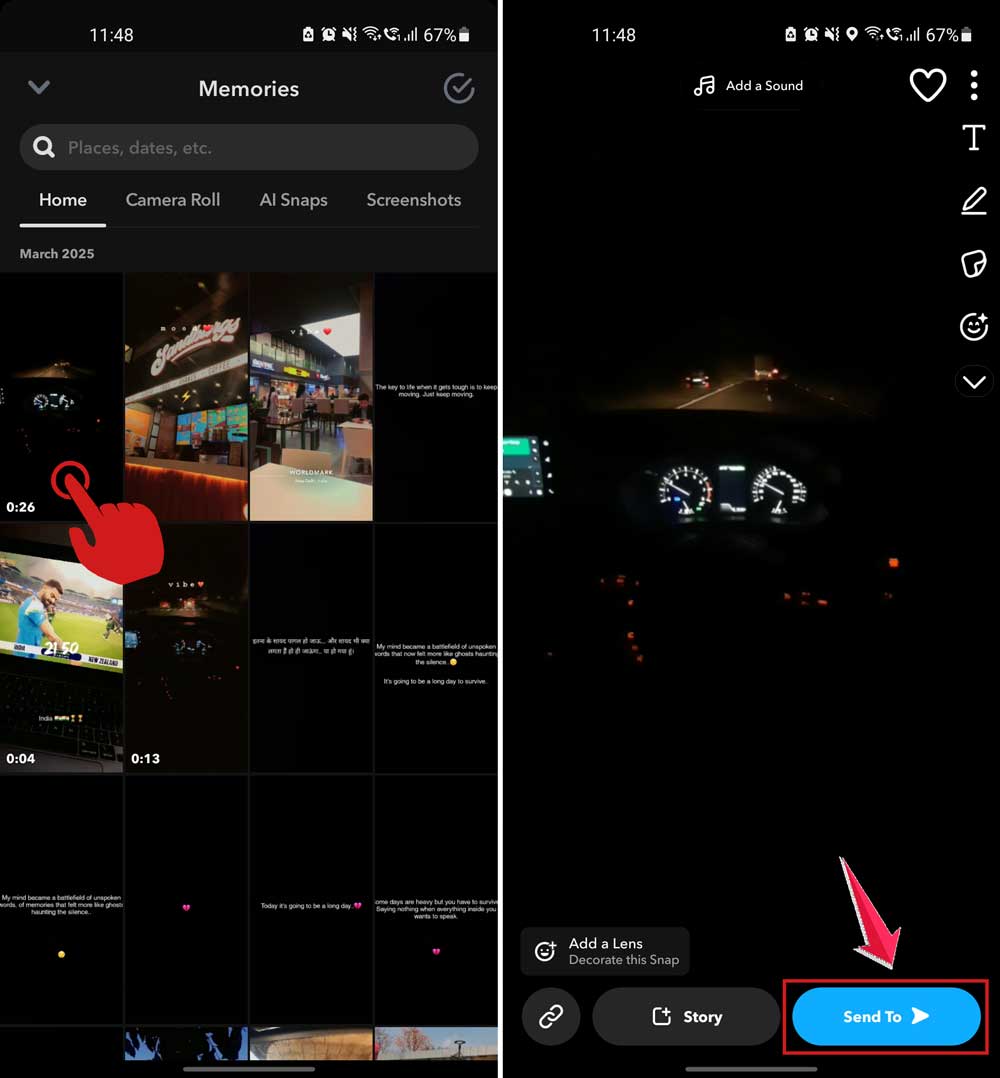
- This brings you to Memories. Scroll through to see if your Snap is there.
- If you find it, tap on the Snap.
- Then tap the Send To button.
- Now, swipe left in the Share To section and tap on the Download option.
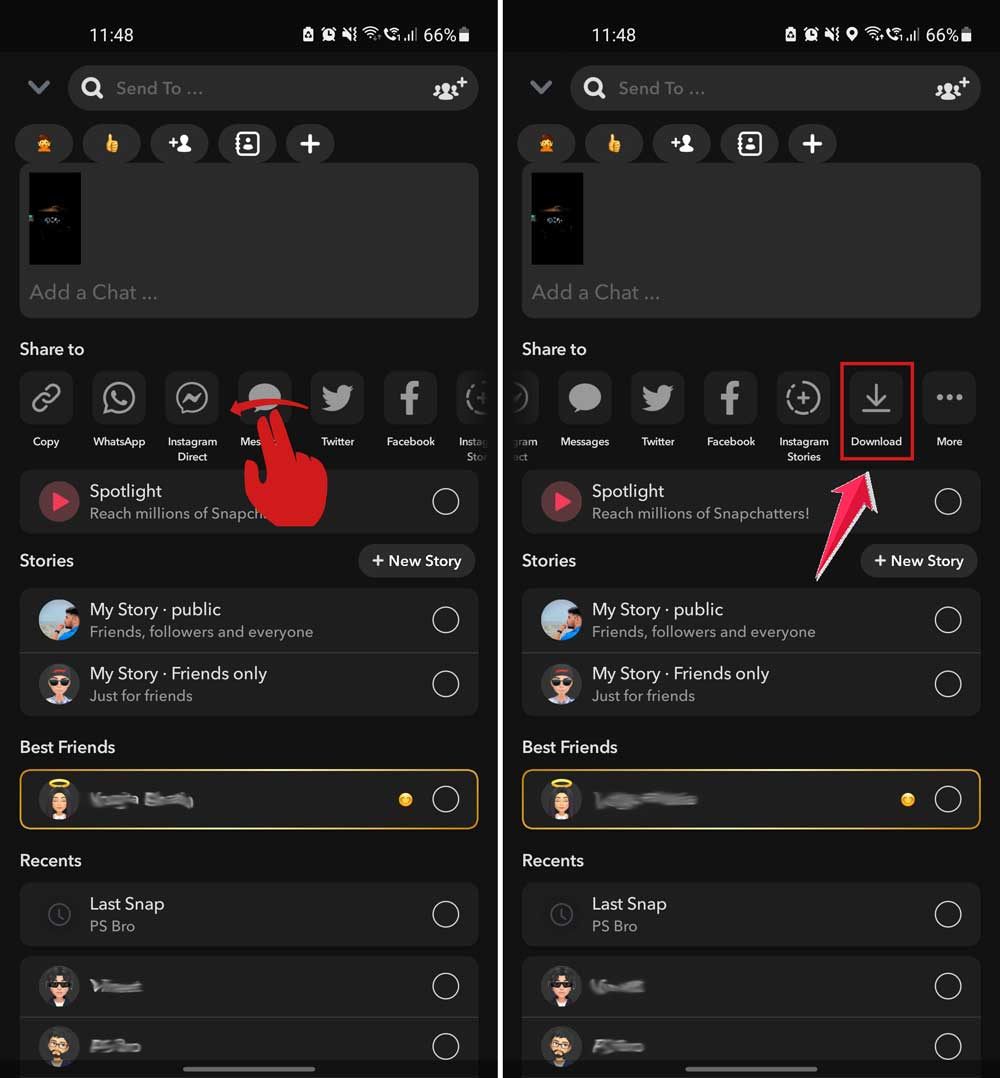
If it’s there—great! If not, don’t give up. We’ve got more options to try.
#2 Contact Snapchat Support
If you didn’t find your Snap in Memories, it’s time to ask Snapchat for help. They might be able to help recover the Snap or at least confirm whether it’s gone for good.
Here’s how to contact them:
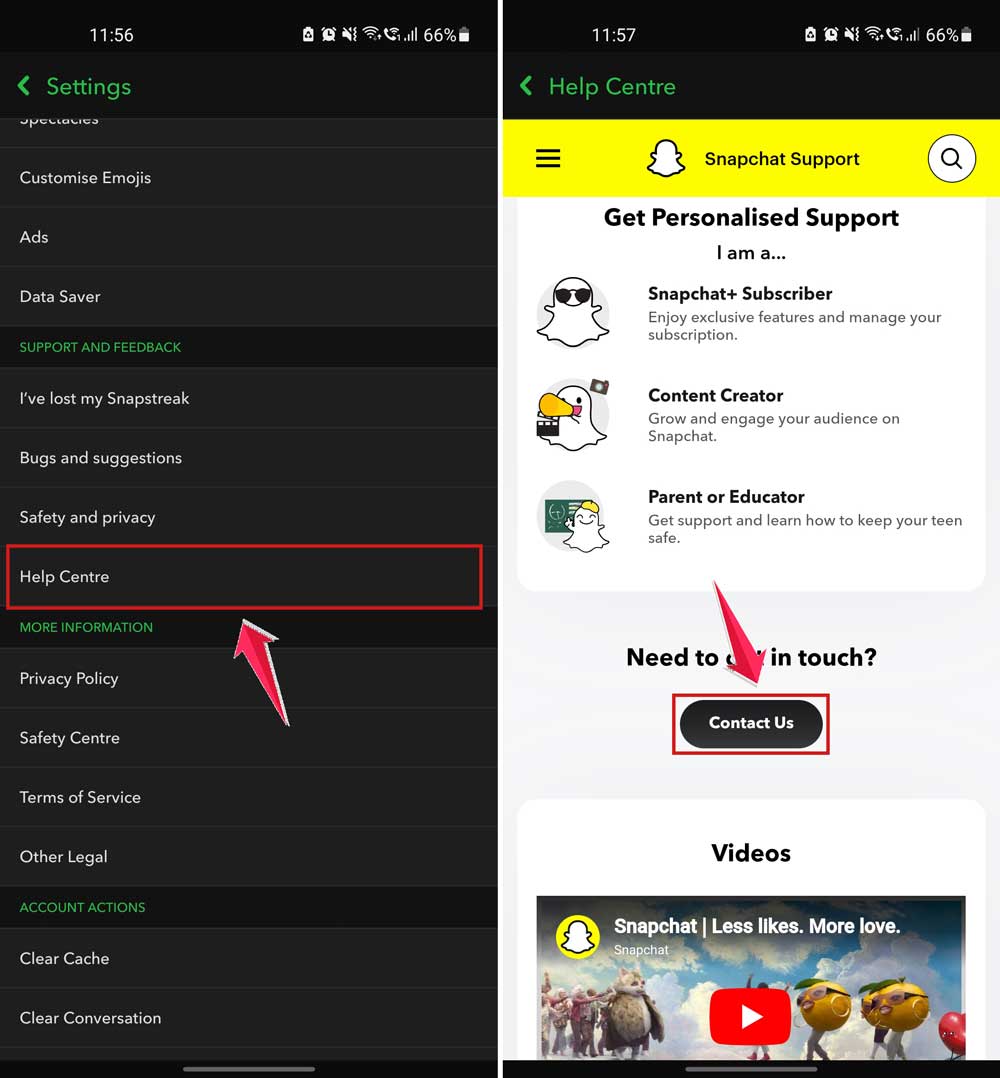
- Open Snapchat and go to your profile.
- Tap the settings icon (gear symbol).

- Scroll down and tap “Help Centre”.
- Choose “Contact Us” and explain your issue clearly.
Be honest and specific. They may not always recover your Snap, but it’s worth a shot.
#3 Use Third-Party Recovery Tools (Be Careful)
Alright, this one’s tricky. There are some apps and tools out there that claim to recover deleted Snaps. But here’s the deal—you need to be really careful. Some of these apps aren’t safe. They might collect your data or even harm your device.
If you still want to try this method:
- Do your research. Read reviews. Look for tools that many people trust.
- Once you find one, follow the instructions carefully.
And seriously—if anything seems off, just stop. It’s not worth risking your privacy or your phone’s safety.
#4 Prevent Future Loss
Make it a habit to save important Snaps to Memories. You can even back them up to cloud storage like Google Photos if you want an extra layer of safety.
- Tap the save icon before sending a Snap you care about.
- Use a cloud backup like Google Photos for extra protection.
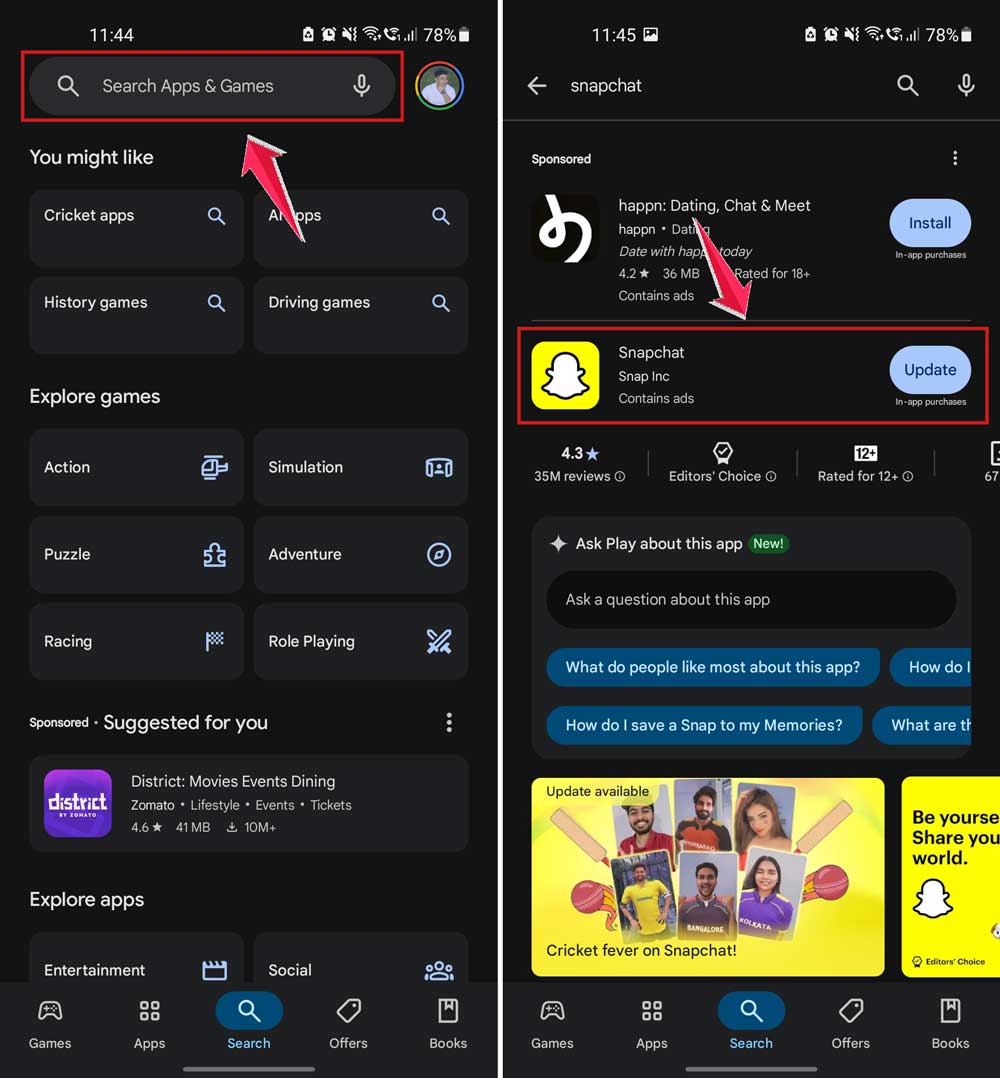
#5 Stay Updated
Keeping Snapchat updated helps fix bugs and prevent glitches. So don’t ignore those app update notifications!
- Go to your phone’s app store.
- Search for Snapchat.
- If there’s an update, install it right away.
#6 Get to Know Snapchat’s Features
Understanding how the app works helps you avoid surprises. Learn what auto-delete does, how Memories work, and how to adjust your settings.
- Snaps auto-delete after viewing unless saved.
- Go into settings and explore your options so you’re in control.
When you know how Snapchat works, you’re less likely to lose something important. And if something does go wrong again—you’ll know what to do.
More friendly advice to keep your Snaps safe
Still with me? Awesome. Let’s go over a few more tips to keep your Snapchat life stress-free.
1. Always Double-Check Before You Tap
We all move fast on our phones. But one quick tap can delete something you didn’t mean to. So slow down just a bit. Double-check before you swipe or hit delete. It really helps.
2. Understand Snapchat’s Settings
Spend a few minutes going through your settings. You’ll find options to change how long Snaps last, who can see them, and whether they auto-delete. You’re in control—use those settings to your advantage.
3. Organize Your Memories
Keep your saved Snaps neat. Go through your Memories once in a while. Delete what you don’t need, and make sure your favorite stuff is still there.
4. Be Cautious About Links and Permissions
Only click links and download apps from trusted sources. Don’t give permissions to apps you don’t know. It’s all about keeping your data—and your Snaps—safe.
5. Educate Yourself on Updates
When Snapchat updates, they often add new features or fix bugs. Take a second to read the update notes. You might find something helpful that makes the app better for you.
The Takeaway
So yeah, losing a Snap can feel like a punch to the gut. But now you know the steps to try and bring it back—from checking Memories to contacting Snapchat Support, and even trying third-party tools if you’re up for it.
The most important thing? You’ve got ways to prevent it from happening again.
Save your Snaps, back them up, and learn how the app works. It’s all about being one step ahead.
Got a Snap rescue story or a tip that worked for you? Comment below and share it! You never know who you might help.