Did you know that over 80% of smartphone users connect to Wi-Fi at home? It’s no wonder that sharing Wi-Fi passwords has become a common part of welcoming guests.
Have you ever felt frustrated trying to share your iPhone’s Wi-Fi password with a friend who has an Android phone? It can be a bit tricky when your devices don’t automatically work together. You might find yourself squinting at the tiny text on your router or fumbling through settings menus.
But don’t worry – sharing your Wi-Fi between an iPhone and an Android is actually easier than you might think. You don’t need to be a tech expert to figure it out. In this article, you’ll learn a simple way to share your internet connection with your Android-using friends.
Whether you have the latest iPhone or an older model, as long as it’s running iOS 13 or newer, you can follow these steps. Get ready to make Wi-Fi sharing a breeze and keep all your guests connected without the hassle.
How to easily share your iPhone’s Wi-Fi password with an Android phone
1. Sharing through a note or WhatsApp message
If you’re not in the same location as your Android friend, you can still share your Wi-Fi details securely. Here’s how:
- On your iPhone, go to Settings > Wi-Fi.
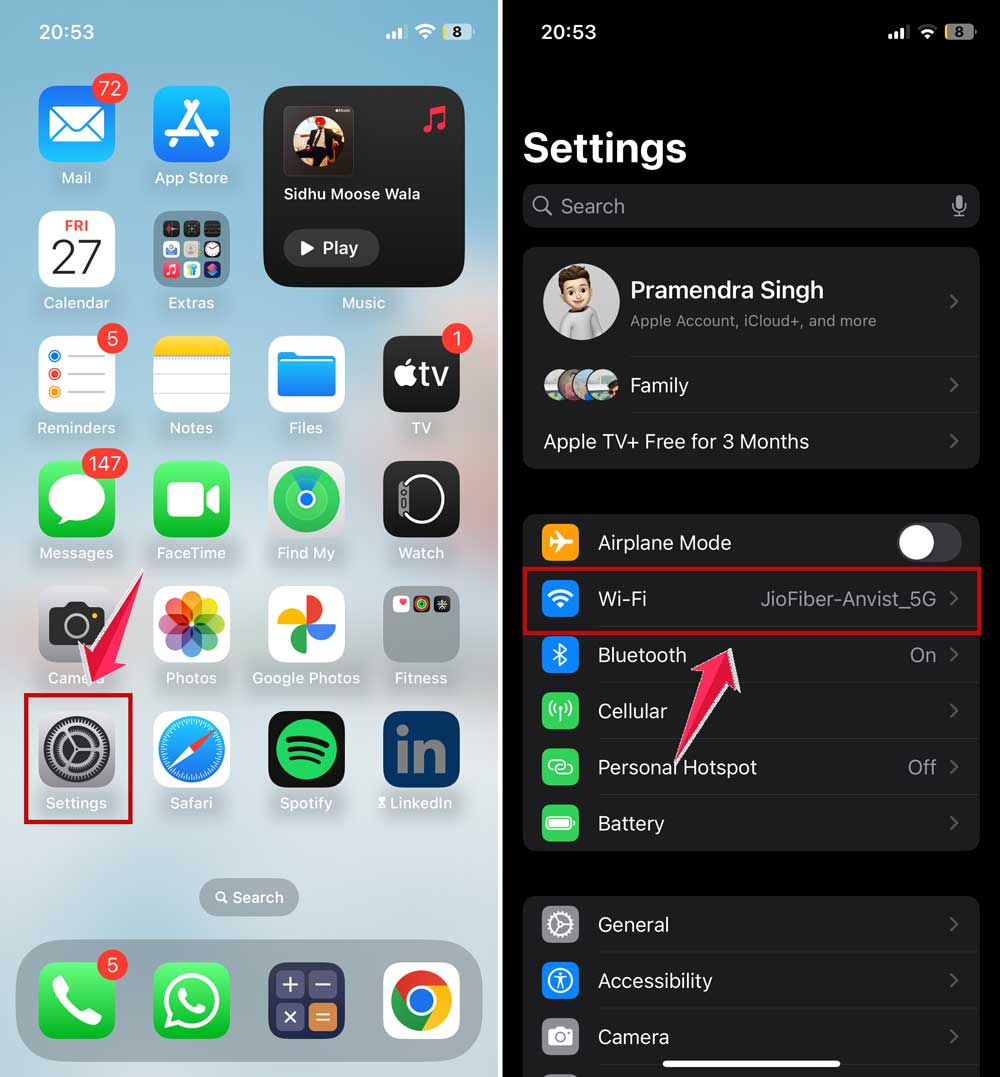
- Tap the info “i” icon next to your network name.
- You’ll see your network password. Copy it.

- Open WhatsApp or your Notes app.
- Paste the network name and password.
- Send this information to your friend.
Your Android friend can then use this information to connect to your network manually.
2. Using iPhone’s Shortcuts app to share Wi-Fi
Did you know your iPhone has a built-in tool that can make sharing Wi-Fi even easier? It’s called the Shortcuts app, and it can create a QR code for your Wi-Fi network. Here’s how you can set it up:
- First, you need to get the right shortcut. Open Safari on your iPhone and go to shortcutsgallery.com/shortcuts/share-wi-fi.
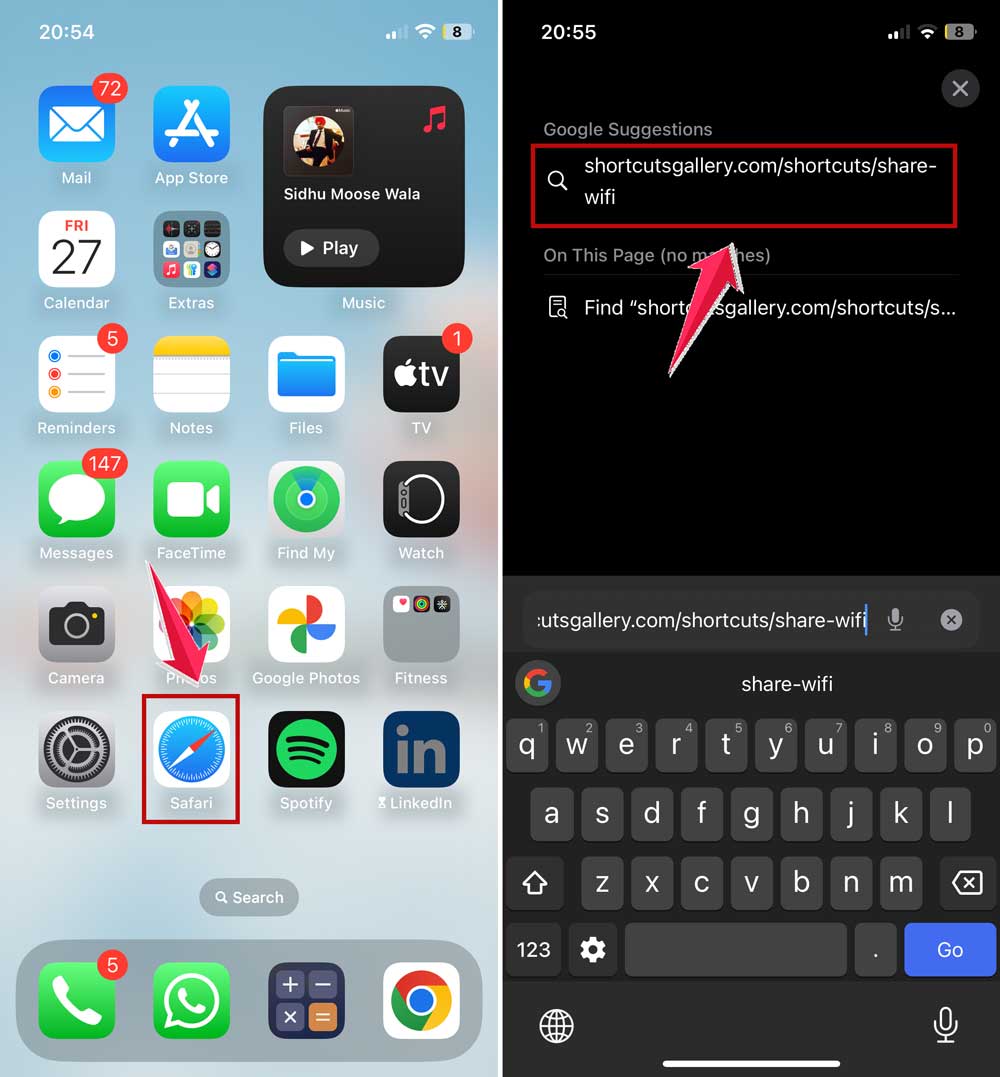
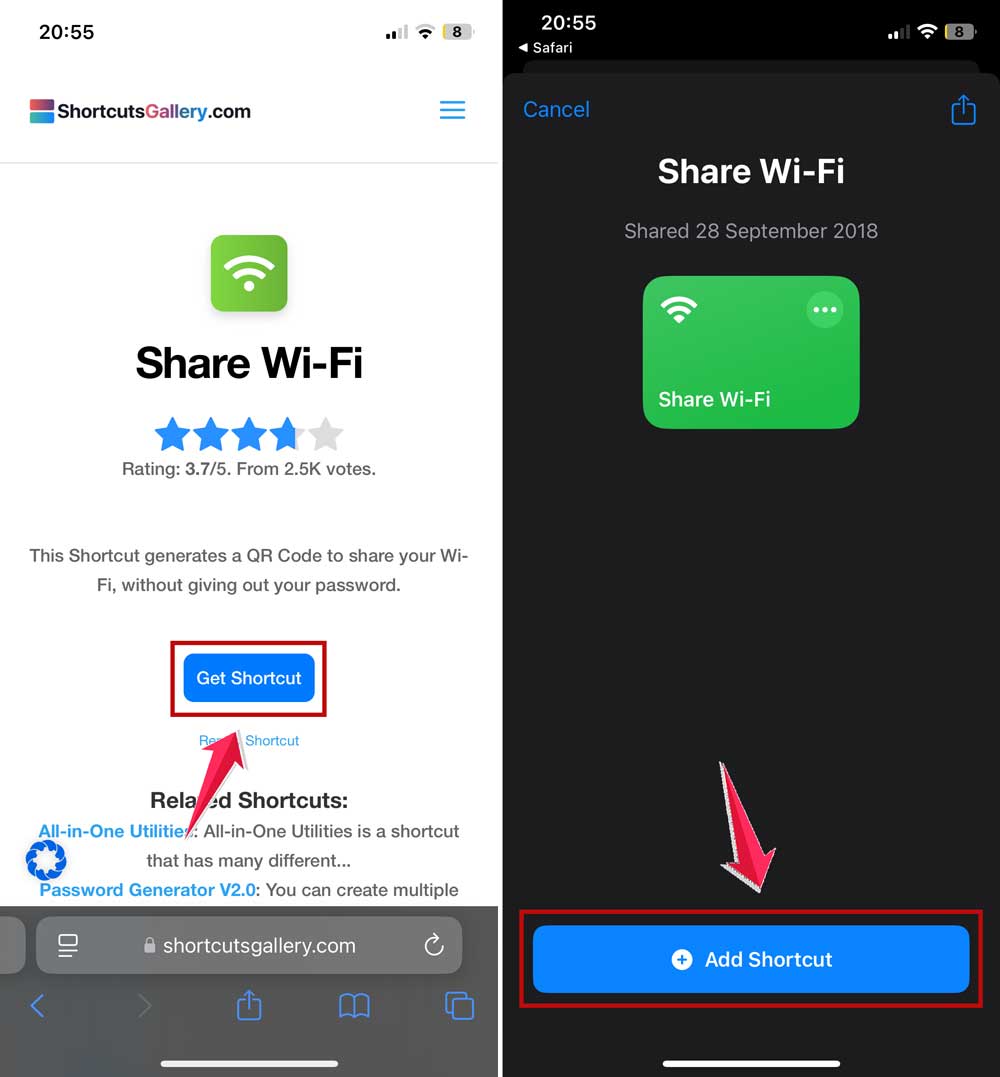
- Tap “Get Shortcut” and follow the prompts to open it in the Shortcuts app.
- In the Shortcuts app, tap “Add Shortcut” to install it.
Now, let’s set up your Wi-Fi password:
- Find the “Share Wi-Fi” shortcut in “My Shortcuts” and tap the three dots to edit it.
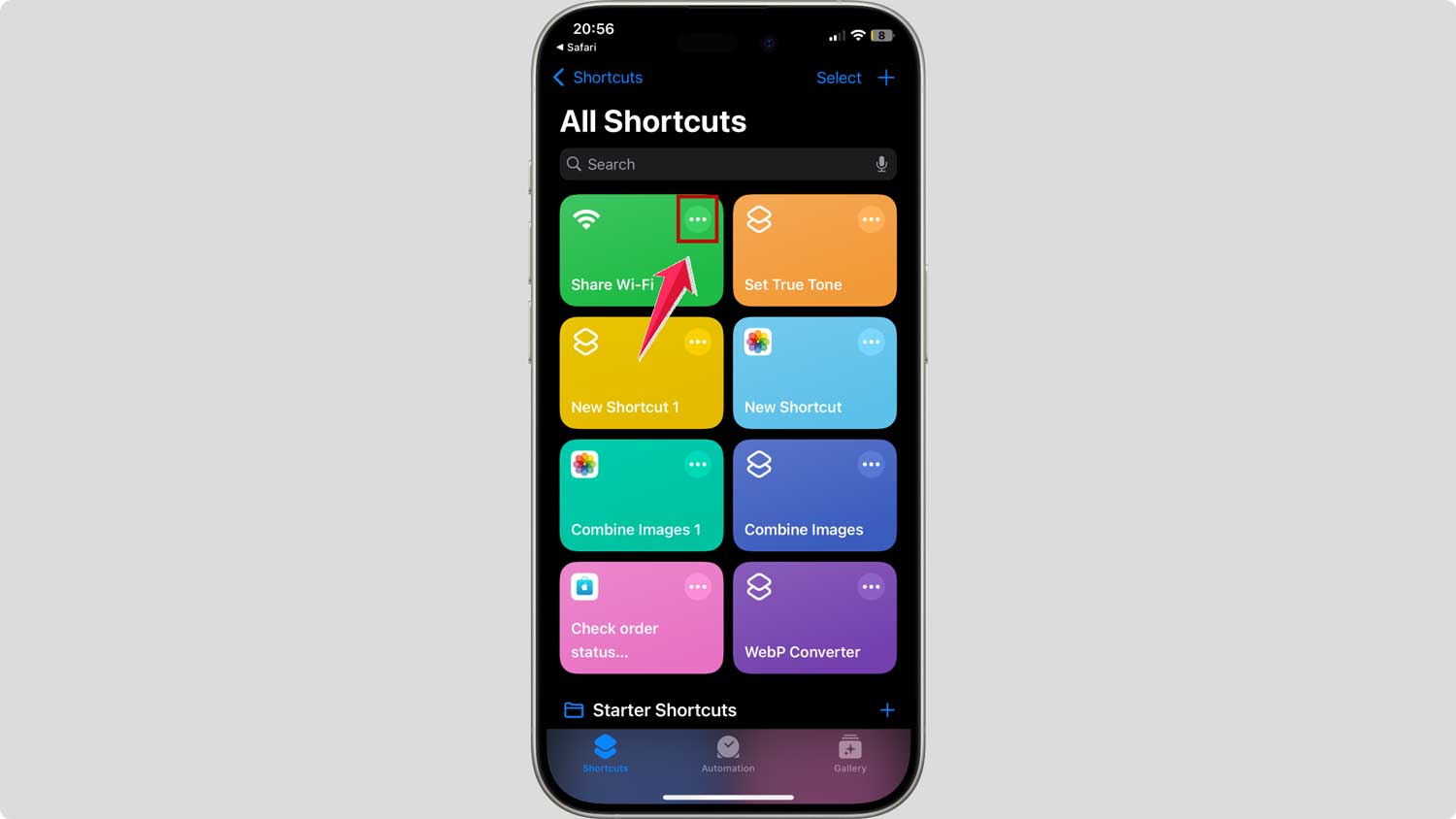
- Look for the text that says “Add Wi-Fi Password” and replace it with your actual Wi-Fi password.
- Tap the Done to save your changes.
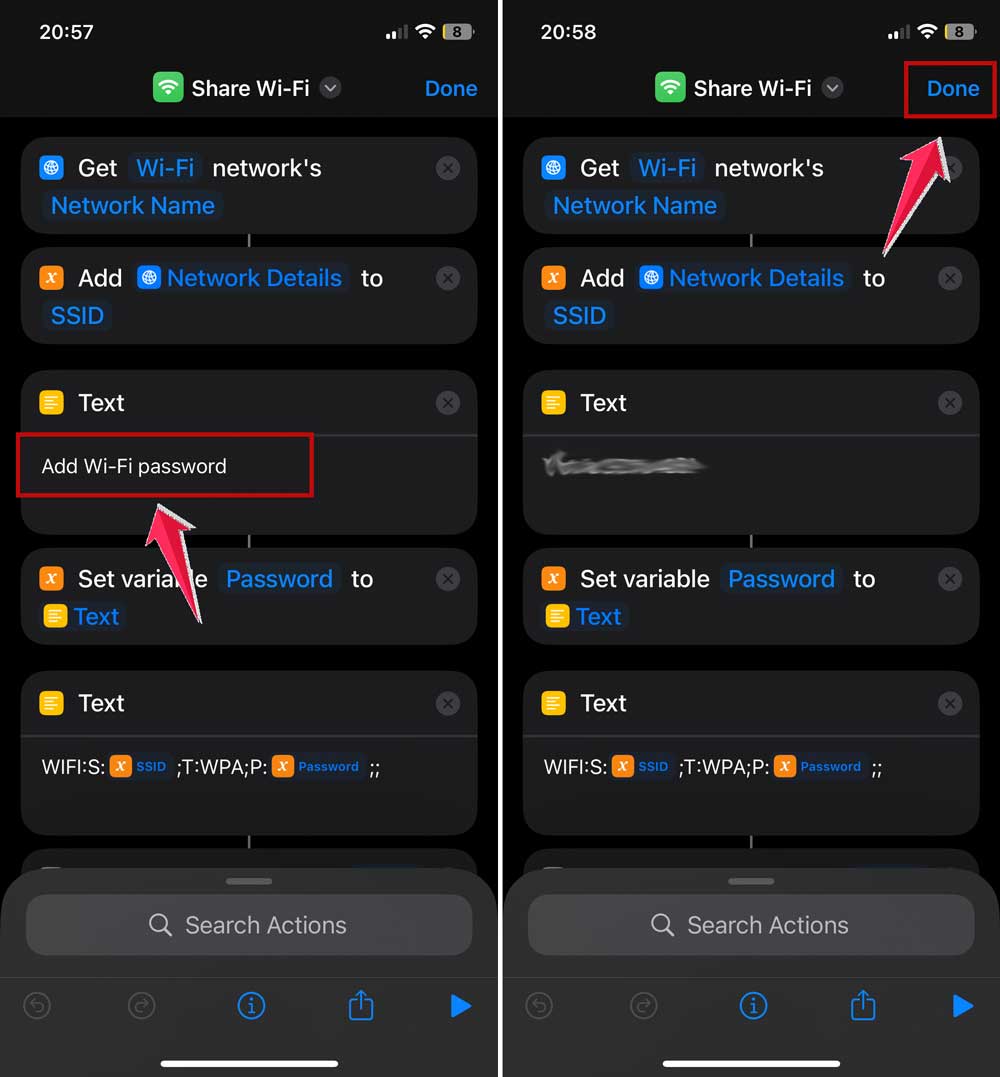
To use the shortcut:
- For easy access, add this shortcut to your home screen.
- When you run the shortcut, it will create a QR code that anyone can scan to connect to your Wi-Fi.
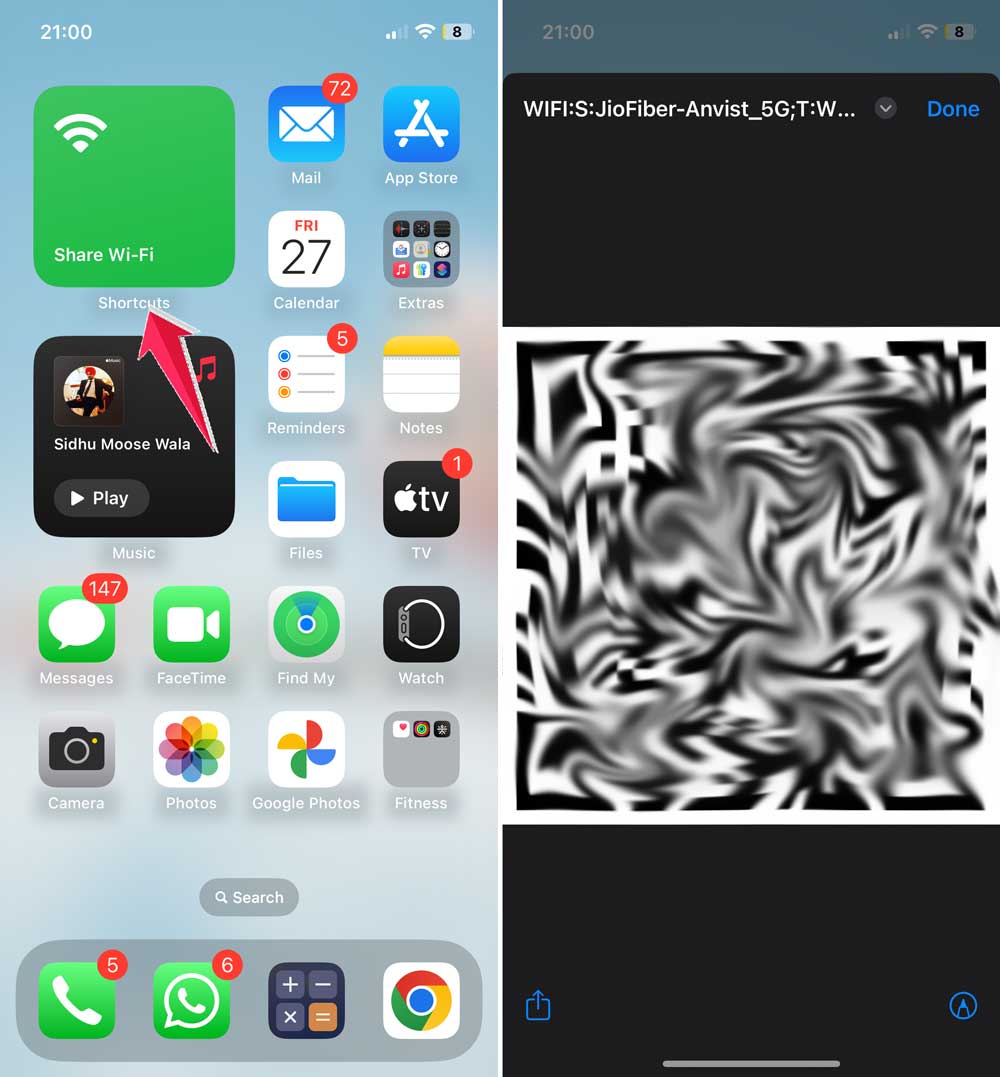
Remember, you need to be connected to the Wi-Fi network you want to share. If you need to share a different network, just make a copy of the shortcut and update the password.
This method is great because it creates a QR code that Android users can easily scan. Speaking of which, let’s talk about how Android users can scan these QR codes.
For Android users:
If you have a newer Android phone (running Android 9 or later), you can usually just open your camera app and point it at the QR code. You should see a notification pop-up that lets you connect to the network.
If that doesn’t work, you can try using the Google app:
- Open the Google app and tap the camera icon in the search bar.
- Point the camera at the QR code.
- Tap on the QR code when it’s recognized.
- You should see a prompt to join the Wi-Fi network.
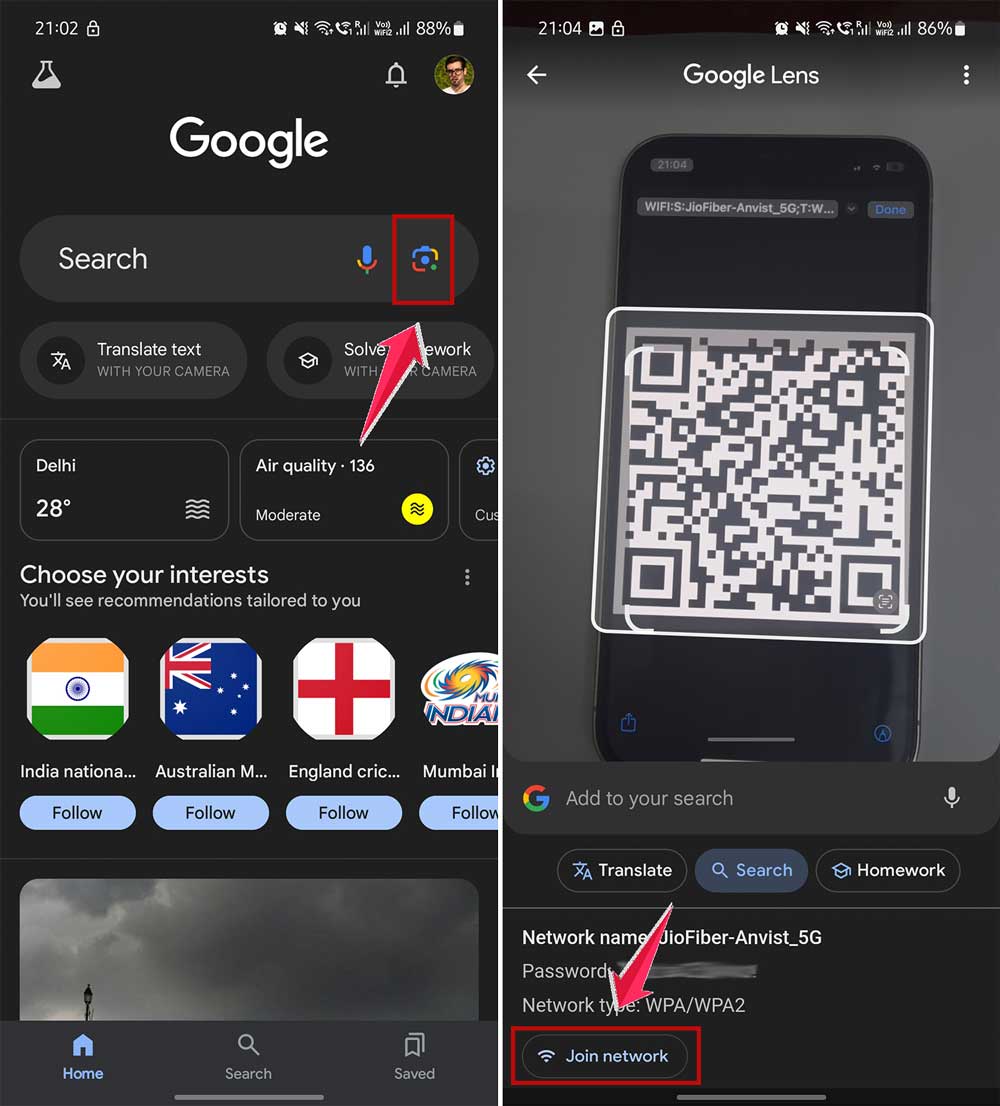
This shortcut method is a handy way to quickly share your Wi-Fi, especially if you often have guests who use Android phones. It’s simpler than trying to remember and type out long passwords!
3. Using a third-party app
There are apps designed to make sharing Wi-Fi passwords easier across different devices. One popular option is “WiFi Map.” Here’s how you can use it:
- Download “WiFi Map” on both your iPhone and your friend’s Android device.
- Open the app on your iPhone and tap “Share WiFi.”
- Select your network and tap “Share.”
- The app will generate a code.
- Your friend can then open the WiFi Map on their Android device and tap “Connect to WiFi.”
- They’ll enter the code you’ve shared, and they’ll be connected.
Remember, always be cautious when using third-party apps and check their privacy policies.
The takeaway
Sharing Wi-Fi passwords between iPhones and Android phones doesn’t have to be a headache. While it’s true that these devices don’t always play nice together, there are simple ways to get connected.
We’ve explored several methods, from manually sharing the password to using third-party apps. The easiest approach is often to use your iPhone to copy the Wi-Fi password from your settings and then share it with your Android friend. They can then type it into their device to connect.
Some people think you need special technical skills to share Wi-Fi between different types of phones, but that’s not true. With the methods we’ve discussed, anyone can do it quickly and easily.
Remember, the most important thing is to keep your Wi-Fi secure. Only share your password with people you trust. With these tips in mind, you can welcome guests to your network without the hassle, no matter what kind of phone they use.
What do you think about these methods for sharing Wi-Fi passwords? Leave a comment below with your thoughts!