Have you ever wanted to see your phone’s photos or videos on a bigger screen? You’re not alone. Millions of people connect their phones to their TVs every day, but if you’ve never done it before, it might seem tricky.
Here’s the good news: connecting your phone to your TV with a USB cable is easier than you might think. Whether you want to show off your vacation pictures, stream your favorite show, or give a work presentation, this simple connection can make it happen.
In this guide, you’ll learn exactly how to connect your phone to your TV using a USB cable. Don’t worry if your TV doesn’t have a USB port – we’ll cover that too. By the time you finish reading, you’ll be able to display your phone’s screen on your TV with confidence. It’s similar to connecting your Xbox One to a TV – once you know the steps, it’s straightforward.
So, are you ready to unlock the full potential of your devices? Let’s dive in and get you connected!
How to connect your phone to your TV using a USB cable
Have you ever wanted to see your phone’s content on a bigger screen? You’re in luck! Connecting your phone to your TV using a USB cable is simpler than you might think. Here’s how you can do it:
1. Find the right cable
First, you need to make sure you have the correct cable. Look for a cable that has a USB-A connector on one end (the larger, rectangular plug) and the right connector for your phone on the other end.
For most Android phones, this will be a USB-C or Micro-USB connector. For iPhones, you’ll need a Lightning connector. If you’re curious about the differences between these connectors, you might want to learn about USB-C vs. Lightning for future device connections.
2. Locate the USB port on your TV
Take a look at your TV and find a USB port. It’s usually on the back or side of the TV, near other connection ports. If you can’t find it, check your TV’s manual or look up your TV model online.
3. Connect your devices
Now, simply plug the USB-A end of your cable into the TV’s USB port and the other end into your phone. Your phone might start charging when you do this – that’s normal!
4. Switch to the right input on your TV
Using your TV remote, press the “Source” or “Input” button and select USB as the input source. You might need to scroll through a few options to find it.
5. Adjust your phone settings
Once your phone is connected, you may need to:
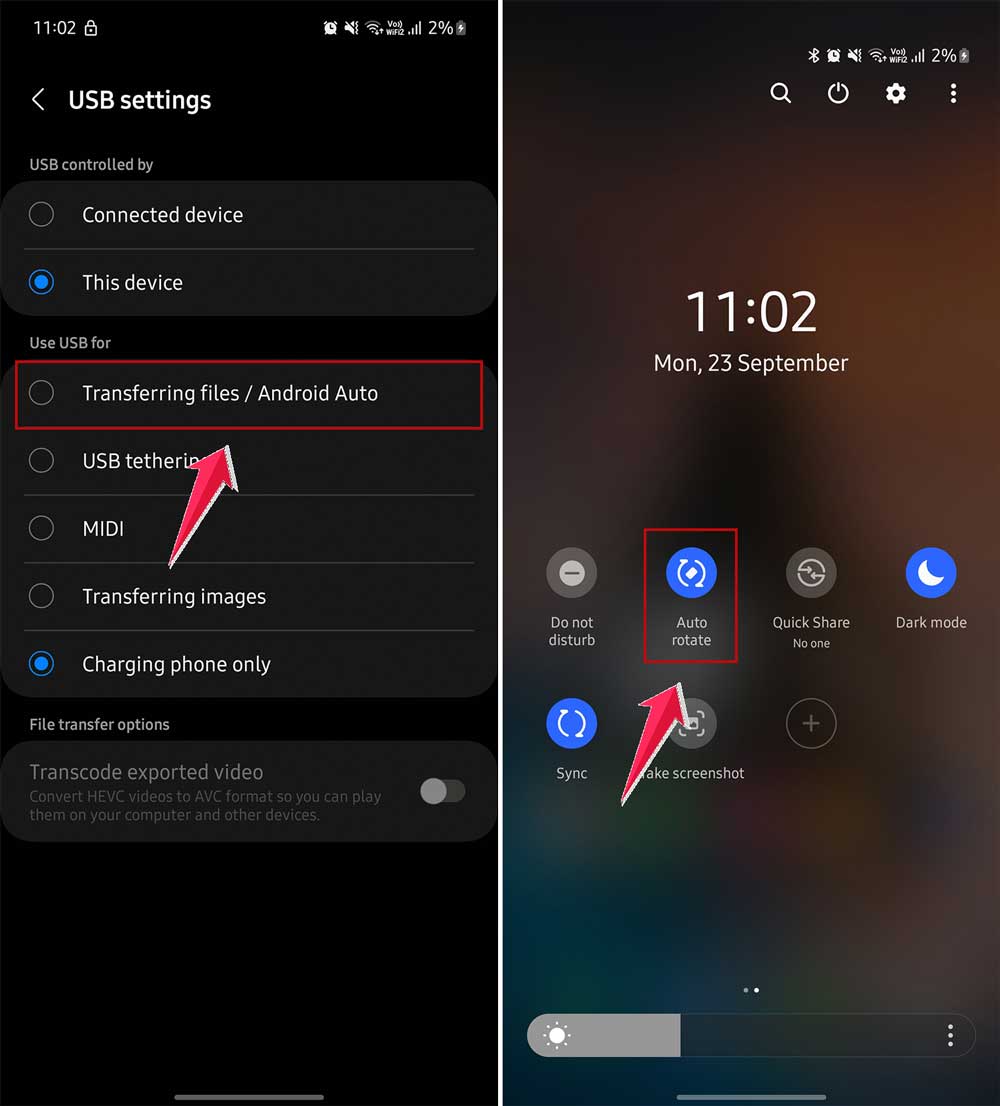
- Allow USB file transfer on your phone if prompted.
- Rotate your phone to match the TV’s orientation.
- Turn off auto-rotate on your phone to keep the image steady.
It’s important to note that not all TVs support displaying phone content via USB. If these steps don’t work, your TV might not have this feature.
Don’t worry, though – in the next section, we’ll talk about some alternative methods you can try.
Why connect your phone to your TV with a USB cable?
You might be wondering why you’d want to use a USB cable instead of a wireless connection to link your phone and TV. Let’s break it down:
1. More reliable connection
Have you ever tried to stream a video wirelessly and had it freeze or buffer? With a USB cable, you get a direct, stable connection between your phone and TV. This means fewer interruptions and a smoother viewing experience.
2. No interference
Wireless signals can be affected by other devices in your home. Your neighbor’s Wi-Fi, your microwave, or even your Bluetooth speaker can cause interference. A USB connection bypasses these issues, giving you a clear, consistent signal.
3. It keeps your phone charged
When you’re streaming videos or playing games, your phone’s battery can drain quickly. Many TVs can charge your phone through the USB connection while you use it. This means you won’t have to worry about your phone dying in the middle of your favorite show.
If you’re interested in other charging methods, you might want to explore what Qi wireless charging is.
4. Better quality for some content
In some cases, a USB connection can provide better video quality than wireless streaming. This is especially true for high-resolution videos or games that require a lot of data transfer.
5. No Wi-Fi is needed
If you’re in a place without Wi-Fi or your internet is down, a USB connection still works. You can enjoy your phone’s content on the big screen without relying on a network connection.
6. Simpler setup
While wireless connections often require you to navigate through settings or download apps, a USB connection is usually as simple as plug and play. Your TV recognizes your phone just like it would a USB drive.
Using a USB cable to connect your phone to your TV can give you a more reliable, higher quality, and hassle-free experience. It’s a great option when you want to share photos, watch videos, or play games on a bigger screen without worrying about connection issues.
What to do when your phone won’t connect to your TV
Sometimes, connecting your phone to your TV isn’t as straightforward as we’d like. Here are some common issues you might face and how to solve them:
1. Your TV doesn’t have a USB port
Don’t worry if your TV lacks a USB port. There’s a simple solution:
- Use a USB-to-HDMI adapter. Most TVs have HDMI ports, so this adapter will let you connect your phone. This is similar to how you might connect a Steam Deck to your TV.
- You can find these adapters online or at electronics stores. Look for one that matches your phone’s connector (USB-C, Micro-USB, or Lightning).
- Remember, this setup might not charge your phone while it’s connected, so keep an eye on your battery level.
2. Your TV doesn’t recognize your phone
If your TV isn’t detecting your phone, try these steps:
- Check if your TV is treating your phone like a USB drive. If so, you might need to change some settings on your phone.
- Look for an option in your phone’s settings called “USB Configuration” or “USB Mode.” Try changing it to “File Transfer” or “MTP” mode.
- If that doesn’t work, using a USB-to-HDMI adapter (as mentioned above) can often solve this problem too.
3. Your phone isn’t displaying on the TV
If your phone is connected but you’re not seeing anything on the TV:
- Make sure you’ve selected the correct input source on your TV. Look for “USB” or “HDMI” depending on how you’ve connected.
- Try restarting both your phone and your TV.
- Check if your phone needs any special settings enabled for external displays.
4. The connection is unstable
If the display keeps cutting out:
- Try a different USB cable. Sometimes, the cable can be a problem.
- Make sure all connections are secure at both ends.
- If you’re using an adapter, ensure it’s compatible with your phone and TV models.
Remember, different phone models might have slightly different steps for connecting to a TV. If you’re still having trouble, check your phone’s user manual or support website for specific instructions.
Don’t get discouraged if it doesn’t work right away. With a bit of troubleshooting, you’ll be enjoying your phone’s content on the big screen in no time!
The takeaway
Connecting your phone to your TV with a USB cable is simpler than you might think, and it can really enhance your viewing experience. Remember, it’s all about enjoying your phone’s content on a bigger screen without the hassle of wireless interference or battery drain.
Don’t let the lack of a USB port on your TV discourage you. With the right adapter, you can still make the connection happen. Whether you’re using an Android or an iPhone, there’s a solution that’ll work for you.
One common misconception is that wireless is always better. While wireless connections are convenient, a USB connection can often provide a more stable and higher-quality experience, especially for streaming video or playing games.
So why not give it a try? Grab that USB cable, connect your phone to your TV, and see how it transforms your viewing experience. You might be surprised at how easy it is and how much you enjoy seeing your favorite content on the big screen.
And if you want to enhance your audio experience as well, consider learning how to connect a Samsung soundbar to your TV.