Did you know that the average person uses about 10 different WiFi networks each month? That’s a lot of passwords to remember!
If you’re like most people, you’ve probably found yourself scratching your head, trying to recall a WiFi password at least once. It’s a common problem, but don’t worry – there’s a simple solution.
If you’re using an Android phone, you’re in luck. Android has a built-in feature that lets you view your saved WiFi passwords.
This means you can quickly find the password for any network you’ve connected to before. It’s a lifesaver when you need to connect a new device or help a friend get online.
In the past, viewing saved WiFi passwords on Android was tricky. You often needed to root your phone or use complicated workarounds.
But if you’re using Android 10 or newer, things are much easier now. You can access your saved passwords right from your phone’s settings, no tech wizardry required.
In this guide, we’ll walk through the process step by step, using simple language that anyone can follow. Whether you’re setting up a new device or just want to be prepared for future WiFi emergencies, this information will come in handy.
How to Find Saved WiFi Passwords on Android
Your Android device has a neat little trick up its sleeve. It can show you the passwords for WiFi networks you’ve connected to before. And the best part? You don’t need to be a tech genius to figure it out.
1. For Stock Android (Google Pixel and similar devices)
Hey there, Pixel user! Or maybe you’re rocking another phone with stock Android? Either way, you’re in for a treat. Your clean, bloatware-free Android experience comes with a super handy feature for finding those pesky WiFi passwords. Let’s walk through it together, shall we?
- Start by opening the “Settings” app. You know, the one with the gear icon.
- Scroll down until you spot “Network & internet“. Give that a tap.
- Next, you’ll want to select “Internet” (or “WiFi” if you’re using an older version).

- Now, find the network you’re curious about and tap the gear icon next to it.
- Look for the “Share” option. Don’t worry; this won’t broadcast your password to the world!
- Your phone will ask you to prove it’s really you. Use your PIN, password, or biometric method.
- And there you have it! You’ll see a QR code and, more importantly, the network password written out below.
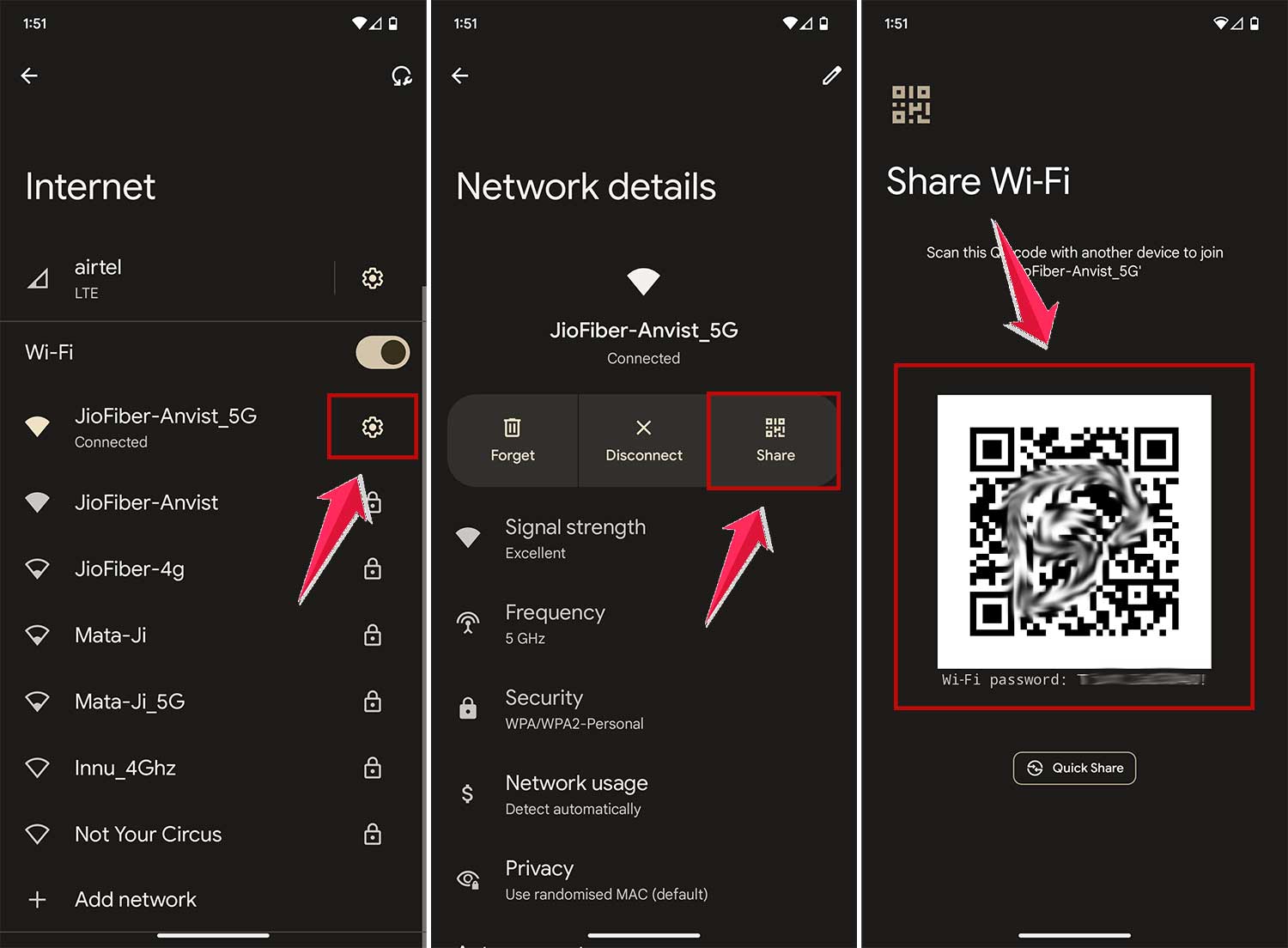
See? Easy as pie. Now, you can impress your friends with your newfound tech skills!
2. For Samsung Galaxy Phones
Samsung Galaxy in your pocket? You’re in luck! Samsung’s One UI might look different, but it’s just as capable when it comes to revealing those hidden WiFi passwords. Here’s how you can unleash this superpower:
- First things first, open up “Settings“. It’s probably in your app drawer or quick settings panel.
- Look for “Connections“. That’s where Samsung keeps all the good networking stuff.
- Tap on “WiFi“. We’re getting warmer!
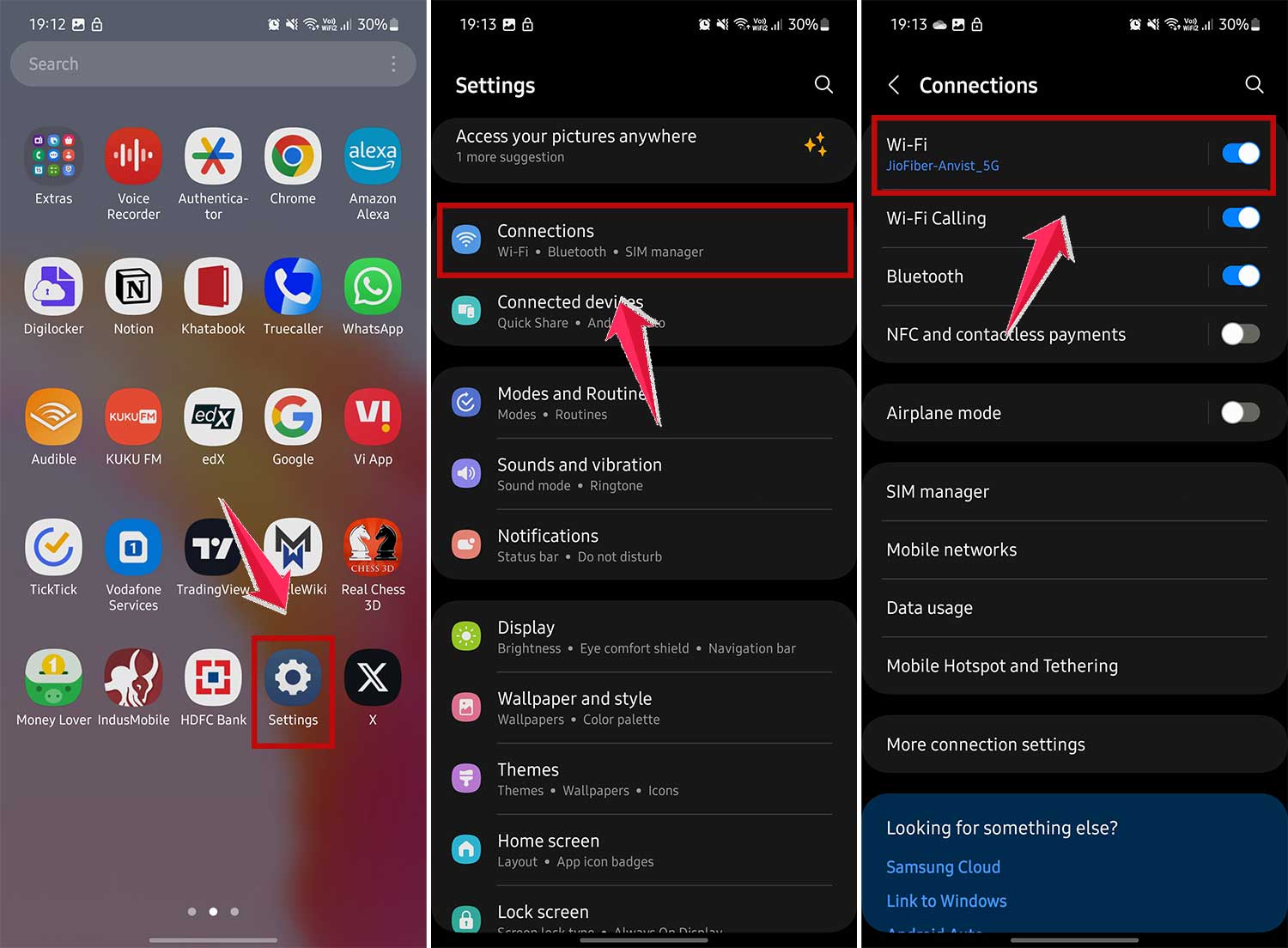
- Find the network you want the password for and tap the gear icon next to it.
- Scroll down and look for “QR code” at the bottom of the screen. Tap on that.
- Your phone will ask for authentication. Use your fingerprint, face, PIN, or whatever method you’ve set up.
- Bingo! You’ll see a QR code and, right below it, the password you’ve been searching for.
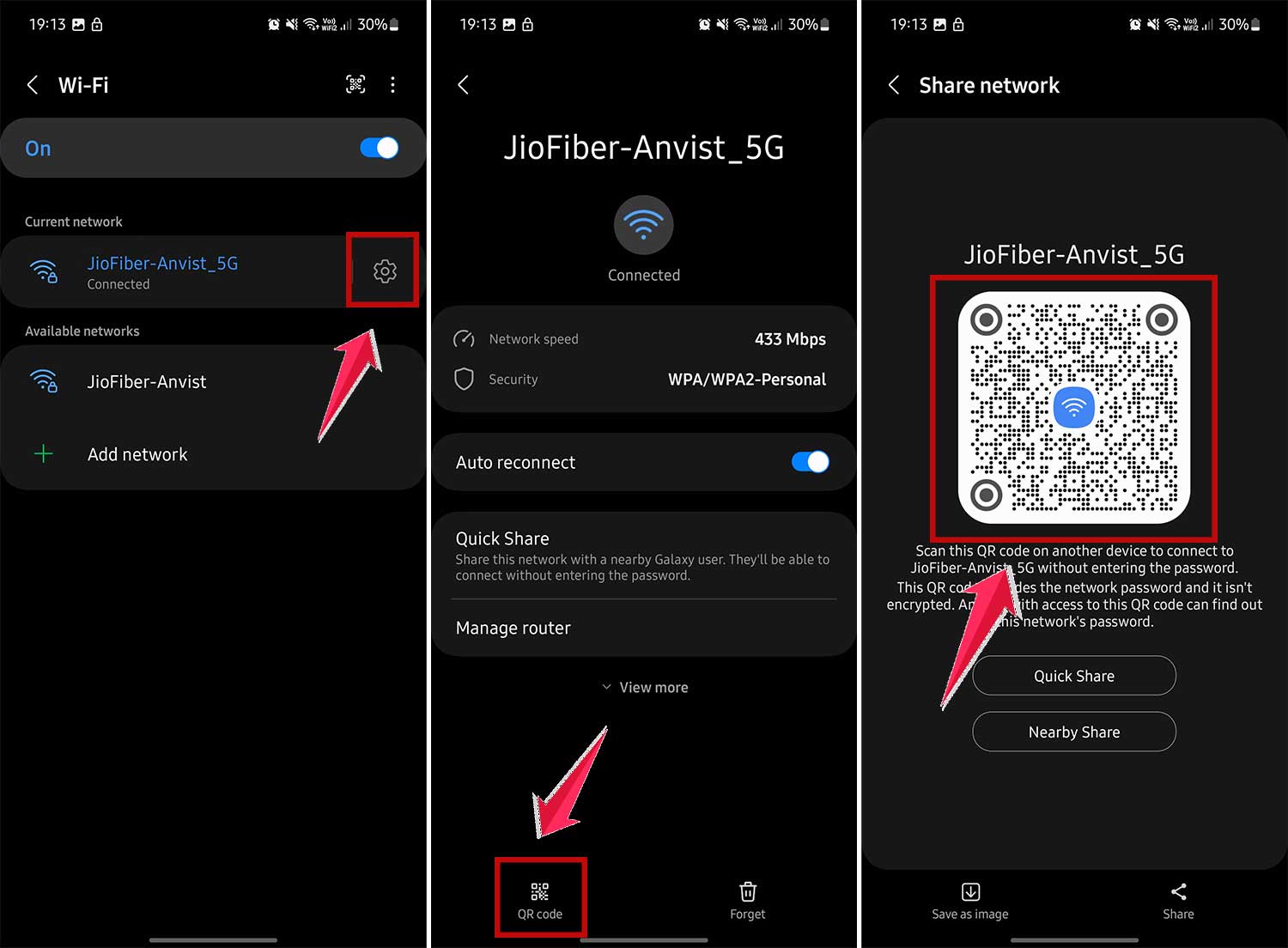
There you go, Samsung user! You’re now a certified WiFi password detective.
3. For Other Galaxy Phones
Do you have a different flavor of the Galaxy phone? No worries! The process is a bit different, but I promise it’s just as easy. Let’s crack this password puzzle together:
- Start by tapping on “Settings“. You know where to find it!
- Look for “Connections” and give it a tap.
- Now, select “WiFi“. We’re on the right track!
- Here’s where it gets fun. Instead of tapping, press and hold on the network name you’re interested in.
- A menu will pop up. Choose “Share” from this menu.
- Time for a quick security check. Prove it’s you using your preferred method.
- Success! You’ll see a QR code and just below it, the WiFi password in all its glory.
And just like that, you’ve mastered the art of finding WiFi passwords on your Galaxy phone. Pretty nifty, right?
Please note that no matter which Android phone you’re using, these steps might vary slightly depending on your exact version.
If you can’t find the exact options, look for similar terms. The general idea is the same: go to WiFi settings, find the network, and look for a share or QR code option.
The Takeaway
Forgetting WiFi passwords can be a real headache, but your Android phone has a built-in solution. Whether you’re using a stock Android device, a Samsung phone, or another Galaxy model, you can easily retrieve saved WiFi passwords right from your settings.
The process is straightforward across all Android devices: navigate to your WiFi settings, find the network you’re interested in, and look for a share or QR code option.
You’ll need to authenticate yourself for security reasons, but once you do, you’ll have access to the password. This feature eliminates the need for rooting your phone or using complicated workarounds.
It’s worth noting that while this feature is incredibly useful, it’s important to use it responsibly. Don’t share passwords for networks that aren’t yours, and remember to keep your own phone secure to protect this sensitive information.
Now, I’d love to hear from you! Have you tried this feature before? How has it helped you? Share your experience in a comment below.