Ever clicked on a PDF file, expecting it to open right away, but instead… nothing happens? Just a blank screen staring back at you? Yeah, it’s frustrating.
You might be trying to read something important—maybe a work report, a school assignment, or even some personal document—and now you’re stuck.
You’re not alone. This is actually a pretty common problem. PDFs are super useful, but sometimes they just don’t work the way they should.
And when they don’t open properly, it feels like the file is hiding from you. But don’t worry, I’ve got your back.
In most cases, this issue isn’t a big deal. It’s usually caused by something small, like a glitch in your reader, a corrupted file, or even an outdated app. The good news? You can fix it yourself. No need to panic or call for help just yet.
So, let’s figure this out together. I’ll walk you through why this happens and what you can do to fix it. Stick with me, and you’ll have your PDFs showing up again in no time.
Here’s Why Your PDF Might Be Showing a Blank Screen
Alright, let’s first understand what might be going wrong. If you know the reason, it becomes much easier to fix the issue, right?
1. Sometimes, the PDF Reader is the Problem
Your PDF reader might just be acting up. Apps can glitch sometimes—it happens. Maybe it didn’t load the file properly, or it froze while trying. If your screen is blank, your reader might be the one to blame.
2. The PDF File Could Be Corrupted
Yes, the file itself might be broken. This can happen during download or even while saving. A corrupted PDF won’t load properly. And instead of showing an error, it might just give you a white screen.
3. Outdated Software Can Cause This
Still using an old version of your PDF app? That could be the issue. Newer PDFs might not open on older apps. So, if your software hasn’t been updated in a while, that might be it.
4. Not All PDF Formats Are the Same
Some PDFs are made using advanced formats or newer tools. If your reader doesn’t support that version, it won’t know how to display the file. And yes, that can lead to a blank screen too.
Now that we’ve gone through the common causes, let’s move on to the part where we fix them. Don’t worry—it’s easier than it sounds.
How To Fix PDF Opens But Shows Blank Screen – Real Solutions
Alright, let’s roll up our sleeves and fix this. I’ll guide you through each step, and you can follow along. Most of these take just a few minutes.
#1: Update Your PDF Reader
This is one of the easiest and most effective fixes. If your PDF reader is outdated, it might not be able to open newer PDFs.
Let’s update it:
- Search for your PDF reader in Google Play Store.
- Install any available updates.
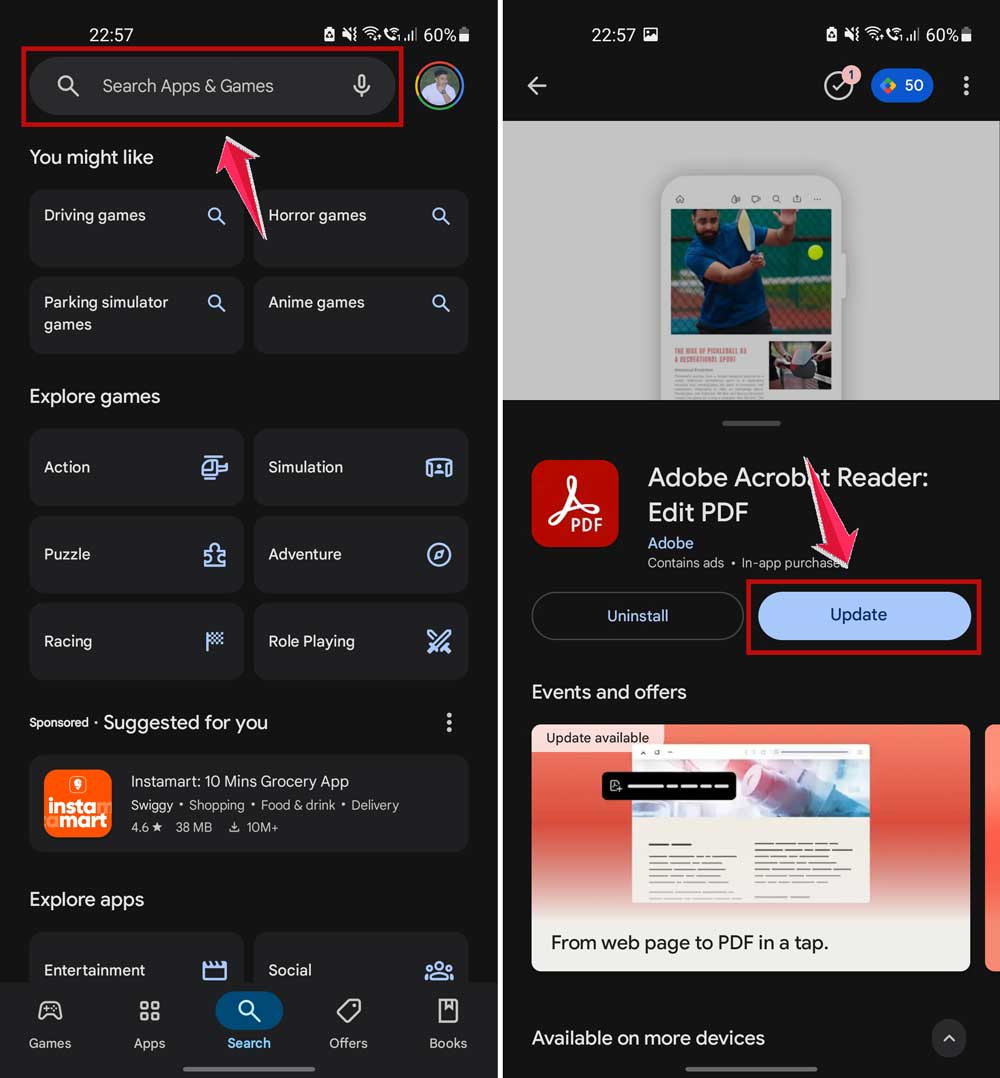
Once it’s updated, try opening the PDF again. If it works—great! If not, let’s move on.
#2: Re-download the PDF File
The file itself might be the culprit. Maybe it didn’t download correctly, or something went wrong during the process.
Here’s what you can do:
- Go back to where you downloaded the PDF from.
- Download it again, but make sure your internet is stable.
A fresh download often fixes corrupted files. Give it a try and see if that helps.
#3: Try a Different PDF Reader
Sometimes, the app you’re using just doesn’t get along with a certain file. Trying a different app can be a quick fix.
Here’s how:
- Search for another PDF reader—like Adobe Acrobat, Foxit, or even browser-based ones.
- Install it on your device.
- Open the same PDF using the new reader.
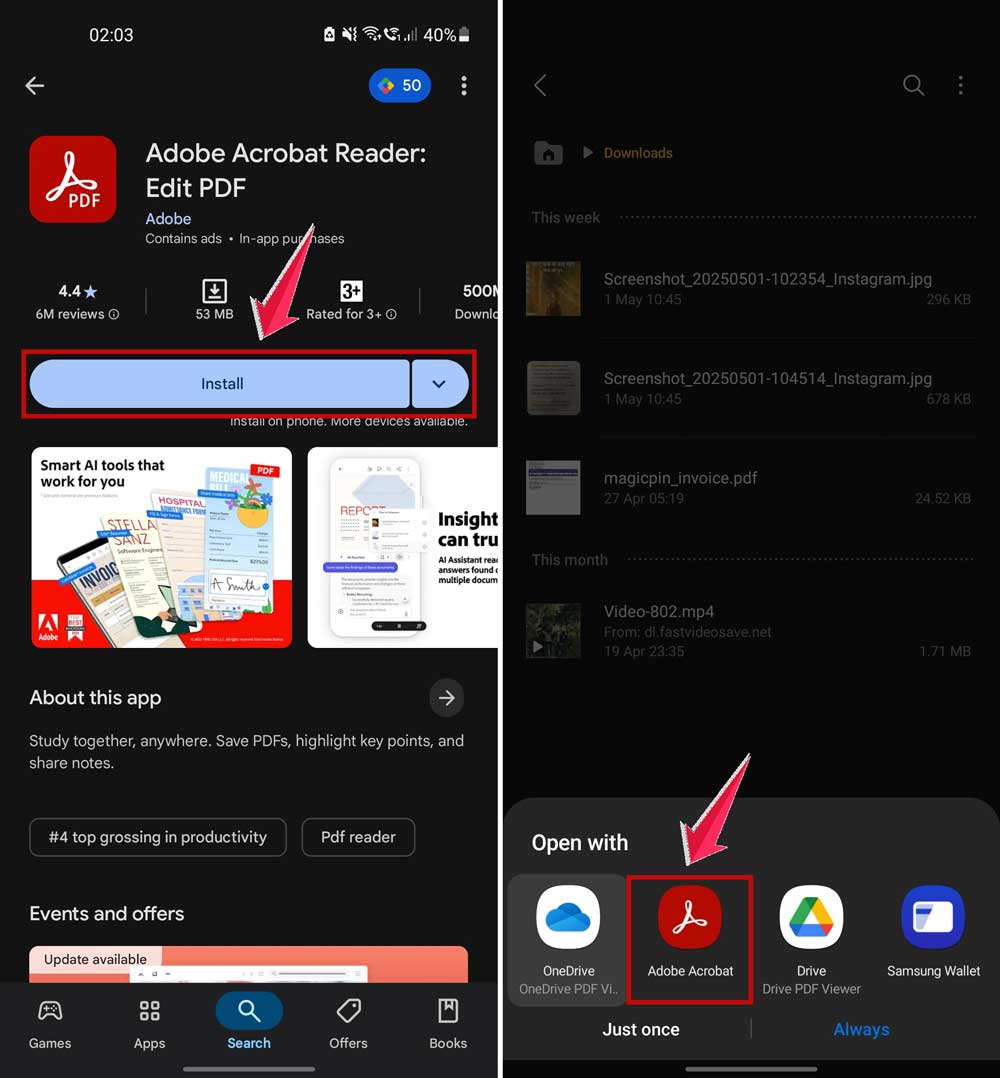
If it opens fine, then you know your original reader was the issue.
#4: Check the File’s Properties
Some PDFs have restrictions or permissions set by the sender. These can stop the file from displaying properly.
Try this:
- Right-click the file (or tap and hold on mobile).
- Select “Properties” or “Get Info.”
- Look for anything like “Read-only,” “Password Protected,” or “Restricted.”
If you see any of those, and you have permission, try removing or changing them. That might do the trick.
#5: Repair the PDF File
If nothing has worked so far, the file might be damaged. But don’t worry, some tools can fix it.
Here’s what to do:
- Search for a trusted PDF repair tool online (like iLovePDF, Sejda, or PDF2Go).
- Upload your PDF to the tool.
- Follow the instructions to repair the file.

Once done, download the repaired version and try opening it again.
Some Extra Tips Just for You
Still stuck? Let’s throw in a few bonus tips that might help clear things up completely.
1. Clear the Cache of Your PDF App
Apps store temporary data that can sometimes get messy. Clearing the cache can help fix weird issues like blank screens.
2. Keep Your Device Updated
Make sure your phone, tablet, or computer is running the latest system update. This helps apps work better and smoother.
3. Run a Quick Virus Scan
Viruses can mess with your files and apps. A quick scan can rule out anything harmful causing the issue.
4. Free Up Some Storage Space
Low storage can slow down your device. Make some room and see if the PDF opens better.
5. Try Opening the PDF on Another Device
Sometimes, switching devices can help you figure out if it’s the file or the device that’s the problem.
The Takeaway
So, you opened a PDF and got a blank screen. Annoying, right? But now, you know it’s not the end of the world.
Most of the time, it’s something simple: an old app, a bad download, or a small setting that needs a tweak.
Start with the basics. Update your PDF reader, re-download the file, and try a different app. These alone fix the problem for most people.
If not, go deeper. Check the file’s permissions or repair the file using online tools.
And don’t forget those extra tips—like clearing the cache or switching devices. Sometimes, it’s the small things that make a big difference.
Got it working? Awesome! If you found a different trick that helped, drop it in the comments. Someone else might be dealing with the same issue, and your tip could save them a ton of time.
Let’s make those blank screens a thing of the past.