Ever tried removing fingerprints from your phone or laptop and it just won’t let you? You tap the delete button, but nothing happens. It feels like you’re stuck in a loop, right? Super frustrating—I get it.
Here’s the thing: when you can’t manage your saved fingerprints, it’s more than just an annoyance. It can mess with your phone’s security.
You might face trouble unlocking your device, or worse, you can’t add new ones because the old ones won’t go away. It’s like your device is holding onto the past and won’t move on.
But don’t worry—I’m here to help. In this guide, we’ll go step by step and walk through everything you need to do.
By the end, you’ll know exactly what’s going wrong and how to fix it. So, grab a coffee, sit back, and let’s sort out those stubborn fingerprints together.
Why You Can’t Remove Fingerprints – Common Reasons
Alright, so you’re stuck trying to delete fingerprints and nothing’s working. Let’s talk about why this could be happening.
Once we know what’s causing the problem, we can fix it faster.
1. Software glitches can block fingerprint changes
Sometimes, your device just acts weird. A small software bug might be stopping the fingerprint settings from working properly.
It could be something as simple as a background process that didn’t load right. And yeah, software bugs are sneaky like that.
2. Old drivers might be messing things up
If you’re using a laptop or PC with a fingerprint scanner, outdated drivers could be the issue.
Drivers are like messengers between your fingerprint hardware and your software. If they’re too old or broken, your system won’t respond the way it should.
3. Strict security settings are blocking you
Now and then, your device’s security settings can be a little too protective. They might not let you delete or change fingerprints unless you adjust a few things first.
That’s great for safety—but not when you’re trying to fix something.
4. Corrupt fingerprint data is causing problems
If your fingerprint data is corrupt, your device might not know how to handle it. It’s like trying to erase something that’s already broken.
Your phone or computer just gets confused and refuses to make any changes.
Alright—now that you know what might be going on, let’s move to the good part: fixing it.
How to fix Can’t Remove Existing Fingerprints on Android?
Okay, now we’re getting to the part that matters most. Here’s how to get those fingerprints removed without the stress.
Stick with me—we’ll go one step at a time.
#1 Restart Your Device
Let’s start simple. Restart your device. Yes, really. It can clear out small bugs and refresh everything.

Sometimes, that’s all it takes. You’ve probably heard this a million times, but trust me—it works more often than you think.
#2 Update Your Device’s Software
Still stuck? Let’s check if your software is out of date. Updates often fix bugs like this.
Here’s how to do it:
- Open your device’s Settings.
- Tap “Software Update” or “System Update”.
- Check for updates and install any available ones.

Once the update is done, try deleting the fingerprints again.
#3 Update Fingerprint Scanner Drivers
If you’re on a Windows laptop or PC, your fingerprint scanner might need a driver update. Old drivers can block changes.
To update your fingerprint scanner driver:
- Open the Device Manager.
- Find the Biometric Devices section.
- Right-click your fingerprint sensor.
- Select “Update driver”.
- Follow the prompts to search and install updates online.
Give your computer a restart afterward and try again.
#4 Check Security Settings
Let’s peek at your security settings. Sometimes they’re too strict for their own good.
Here’s what to do:
- Go to your Security & Privacy settings.
- Tap on Biometrics or Fingerprint settings.
- Make sure you’re allowed to add or remove fingerprints.
If something’s locked, you might need to enter your PIN or password to unlock the option.
#5 Re-register Your Fingerprints
If deleting doesn’t work, try re-adding them first. Sounds weird, I know—but it can trigger the system to reset the fingerprint data.
Here’s how:
- Go to Settings > Security and privacy > Biometrics.
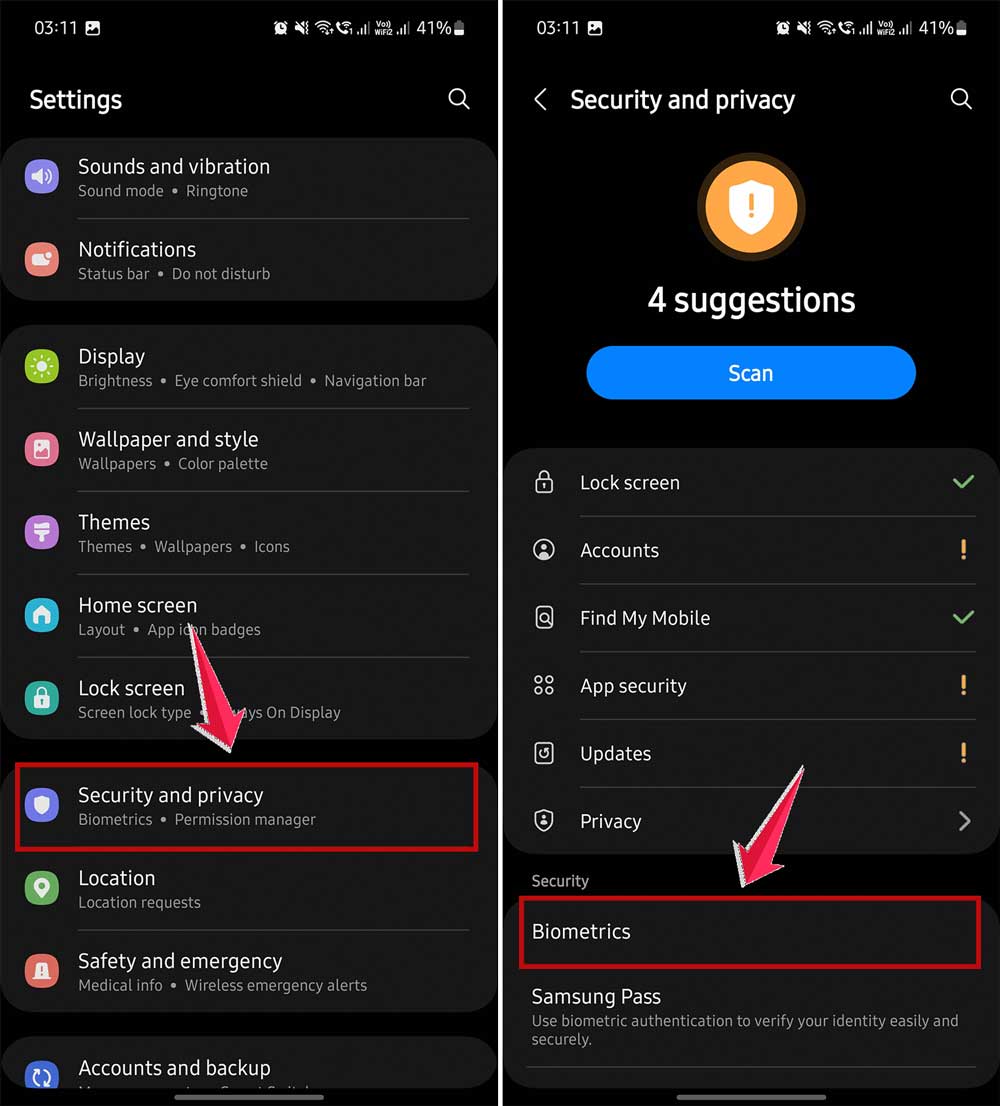
- Tap Fingerprint and click on old fingerprints one by one.

- Now, remove the old fingerprints.
- Then go back and try to add a new fingerprint.
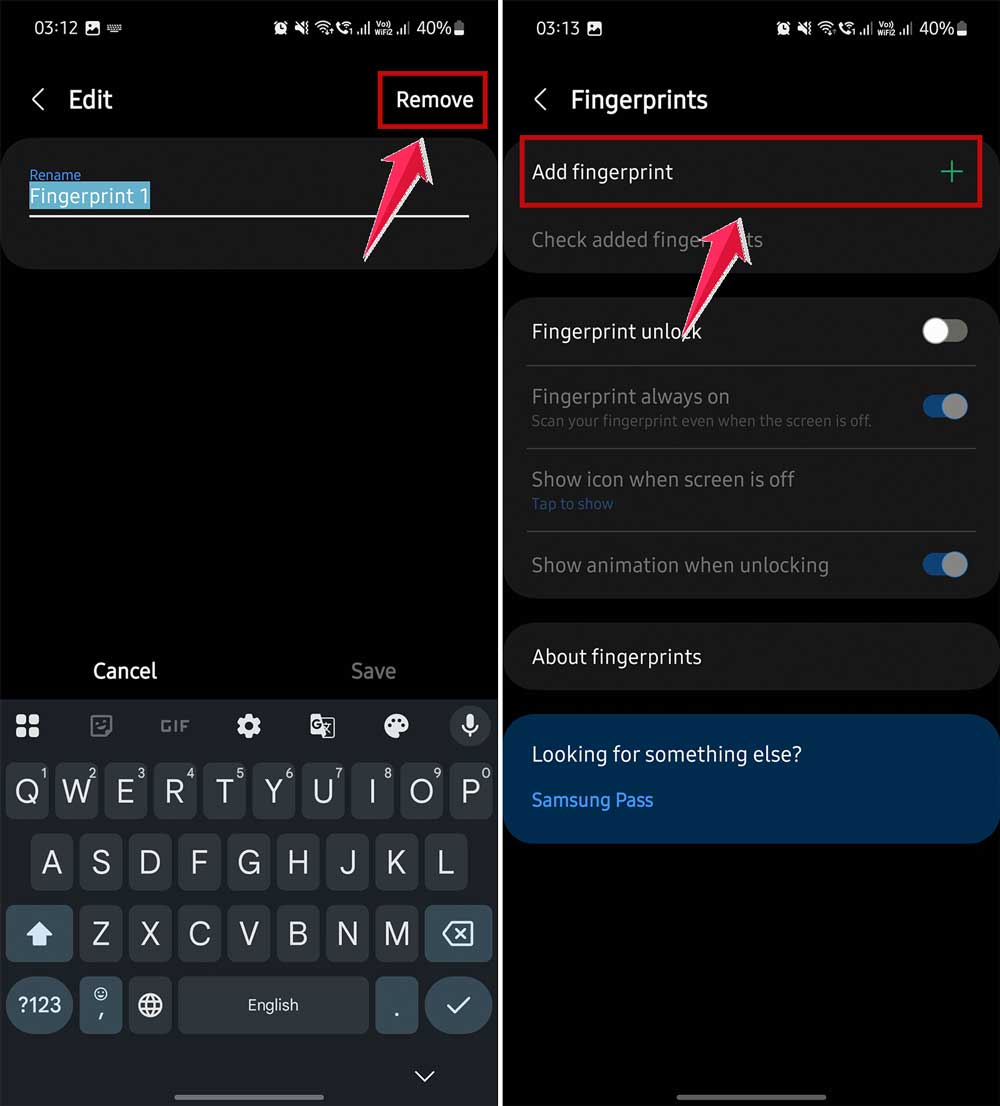
Sometimes, a new scan refreshes the whole fingerprint setup.
#6 Use Safe Mode
This one’s for when third-party apps are getting in the way. Booting into Safe Mode helps you bypass them.
To enter Safe Mode:
- Press and hold the power button.
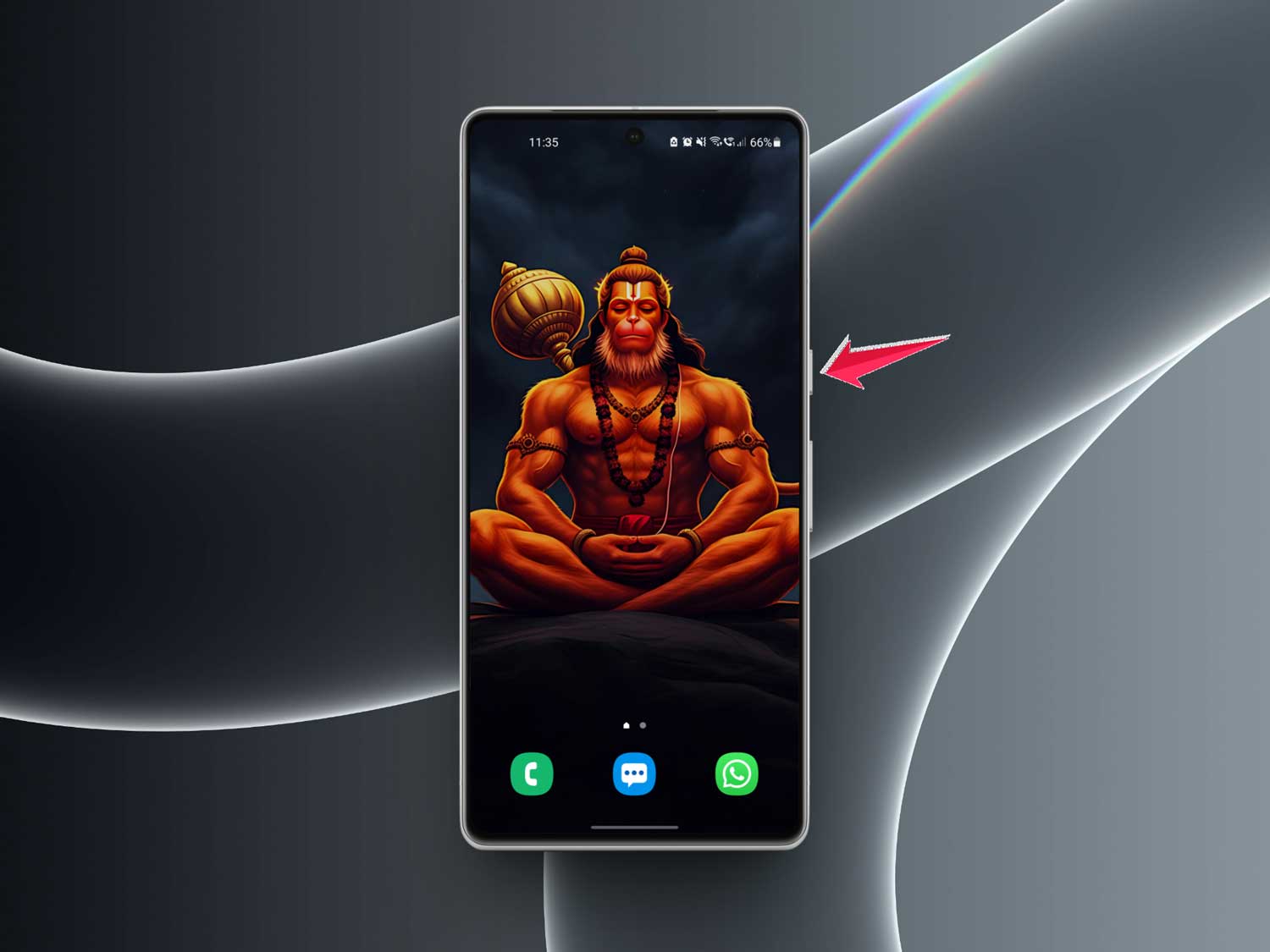
- When options pop up, tap and hold “Power off”.

- Select “Reboot to Safe Mode” when it appears.

Once in Safe Mode, go to your fingerprint settings and try removing them again.
#7 Clear Fingerprint Cache (Android only)
If you’re using an Android device, clearing the fingerprint app’s cache can help clean up stuck data.
Here’s how to do it:
- Open Settings > Apps.
- Find your Fingerprint app (the name may vary).

- Tap on Storage.
- Hit “Clear Cache”.
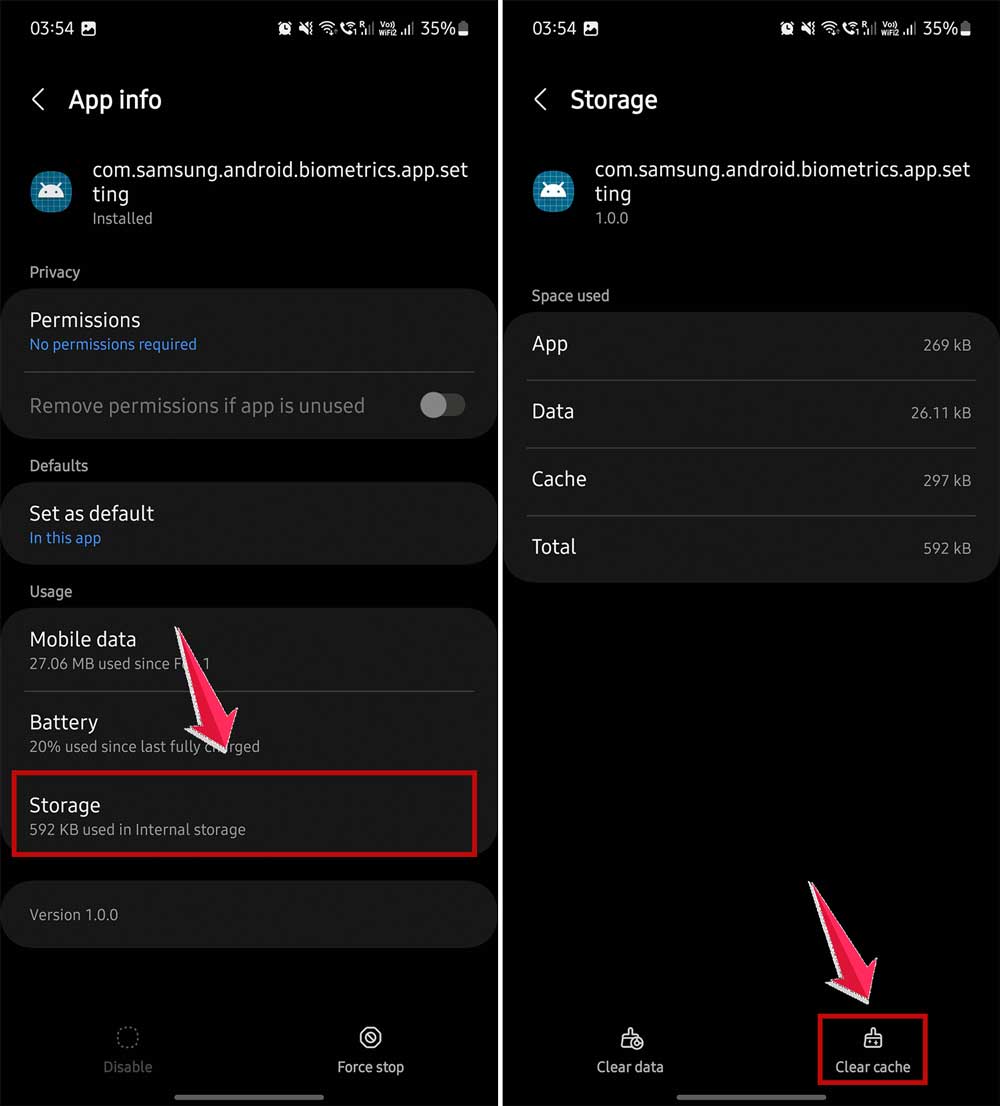
Restart your phone and try again. This can flush out any lingering bugs.
Alright, that’s a solid list of fixes. Try them one at a time. Most of the time, one of these will do the trick.
If not, don’t worry—we’ve got a few more handy tips coming up.
Extra Tips to Keep Fingerprint Issues Away
Let’s wrap things up with some bonus advice. These tips can help you avoid fingerprint problems in the future.
1. Keep all your software updated
This one’s easy but powerful. Updates fix bugs and keep things running smoothly. Don’t skip them!
2. Back up your data regularly
If you ever need to reset your phone or PC, you’ll be glad you backed up your stuff. It saves you from losing anything important.
3. Skip sketchy fingerprint apps
Avoid downloading random fingerprint apps from unknown sources. They can mess with your settings or even cause security risks. Stick to what’s built-in.
4. Keep your fingers clean
Dirty or wet fingers can confuse the scanner and cause errors. Wash and dry your hands before scanning—it makes a big difference.
5. Restart your device once a week
A weekly restart can keep your system fresh and free of bugs. It’s like a mini reset for your phone or PC.
Try these tips and you’ll keep fingerprint issues away for good.
The Takeaway
So, you’ve been stuck with fingerprints you couldn’t delete—yeah, that’s annoying. But now? You’ve got all the tools to fix it.
We talked through simple things like a quick restart, and more advanced fixes like updating drivers or using safe mode.
Most of the time, one of these steps will solve the issue.
A lot of people think fixing fingerprint problems is hard or technical. But now you know—it’s not. You just need the right steps, and a little patience.
So go ahead, give these fixes a try. And when you’re done, come back here and let me know how it went in the comments.
Did it work? Did you find another trick that helped? I’d love to hear from you.