Oh no! Seeing “Account Not Found” on Gmail can feel like a mini-crisis, right? It’s that moment when your heart skips a beat and you think, “Wait… did I do something wrong?”
Well, take a deep breath. You’re not alone. This usually happens because of something small, like a typo, a network issue, or even just logging into the wrong account.
Maybe you mistyped your email. Or maybe you’re switching between accounts and clicked the wrong one. It happens to the best of us.
Why does this matter? Because your Gmail isn’t just email. It’s where your important stuff lives, messages, updates, work files, even access to other Google services like YouTube, Drive, and Photos. So yeah, getting locked out isn’t fun.
But here’s the good news: most of the time, it’s totally fixable—and easier than you think. So let’s walk through it together.
I’ll show you what to check, what to fix, and how to get back into your account step by step.
Check These Common Causes First
Before we jump into recovery steps, let’s make sure it’s not something super simple causing the issue. You’d be surprised how often that’s the case.
1. Check if you typed your email correctly
Start here. It might sound basic, but a small typo can throw everything off. Maybe you hit an extra key, missed a letter, or added a space without noticing. Gmail won’t recognize the address if it’s even slightly wrong.
Take a moment and slowly type in your full email. Double-check every letter. If you usually use autofill to log in, try typing it out manually this time. You might catch a small mistake.
2. Did you delete your Google account?
It’s rare, but it happens. Maybe you deleted the account a while ago and forgot. Or maybe someone else with access deleted it. Think back—did you get any warning emails from Google about account deletion or inactivity?
If you did delete it recently, Google gives you a short window to recover it. So don’t wait—act quickly if this might be the case.
3. Could your account be disabled or hacked?
Sometimes, Google disables accounts for security reasons. This can happen if there’s suspicious activity, like someone trying to log in from a weird location. If it seems like your account has vanished, this could be why.
Try checking your recovery email or phone for any alerts from Google. If your account was hacked, we’ll walk through recovery steps in the next section.
4. Are you mixing up multiple Gmail accounts?
If you use more than one Gmail address, it’s easy to mix them up. Maybe you’re trying to log into your work account but typed your personal one—or vice versa. Make sure you’re using the right email for the account you’re trying to access.
5. Is your internet or browser acting up?
Sometimes, Gmail isn’t the problem—your internet is. A bad connection, browser glitch, or even stored cache can mess with login. Try switching to mobile data or restarting your Wi-Fi. Also, clear out your browser’s cache and cookies. We’ll show you how below.
Still stuck? No worries. Let’s move on to the real fixes now.
Gmail Says “Account Not Found” – What to Do
Alright, now let’s get into the actual steps you can take to fix this. I’ll walk you through each one. Some are quick, some take a bit more effort—but we’ll handle it together.
#1 Triple-check your email address
Start with the basics. This is the most common reason people see the “Account Not Found” message. One wrong letter and Gmail won’t recognize it.
Look closely—are there any typos? Did you accidentally use “.con” instead of “.com”? Are there any extra spaces at the beginning or end? It only takes a second to fix this.
Try typing it out slowly and clearly. If you copy-paste, make sure there’s no hidden space at the end.
#2 Try Google’s account recovery tool
If your email looks right but it still won’t let you in, it’s time to recover your account. Google has a special page for that. You’ll answer a few questions to prove it’s really you.
Here’s how to do it:
- Go to the Gmail sign-in page.
- Click on “Forgot email?” or “Can’t access your account?”.

- Enter your recovery email or phone number.
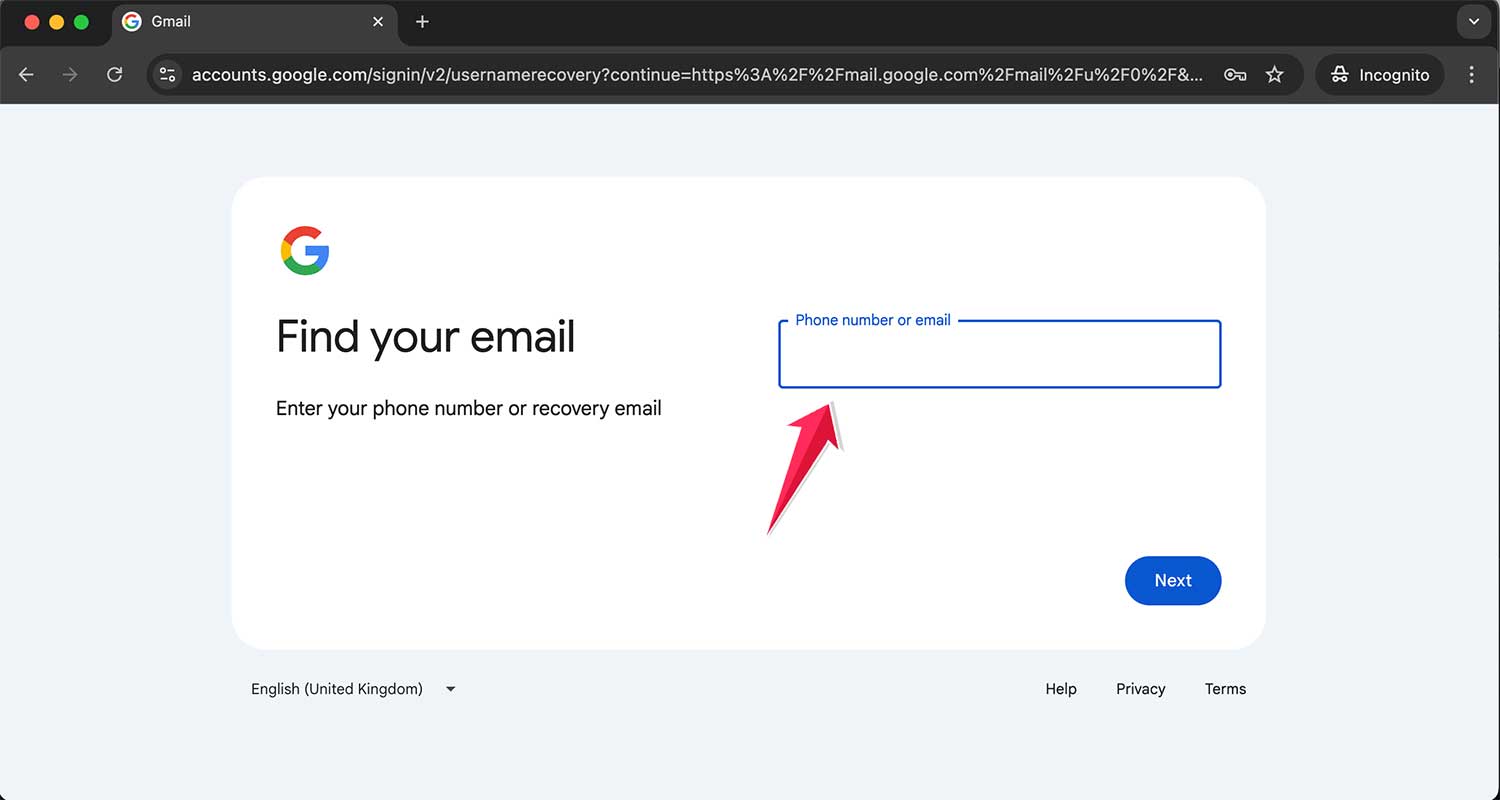
- Answer the questions Google asks to verify your identity.
Try to answer as accurately as you can. Google will check these details against what’s on file. If you get stuck, try again with a different recovery method.
#3 Check if your account was deleted or disabled
Still no luck? It’s possible the account was deleted or disabled. If it was deleted recently, you might still be able to bring it back.
Here’s what to do:
- Visit the Google Account Recovery page.
- Enter the email you’re trying to recover.
- If it says the account doesn’t exist, try the steps for recovering a deleted account.
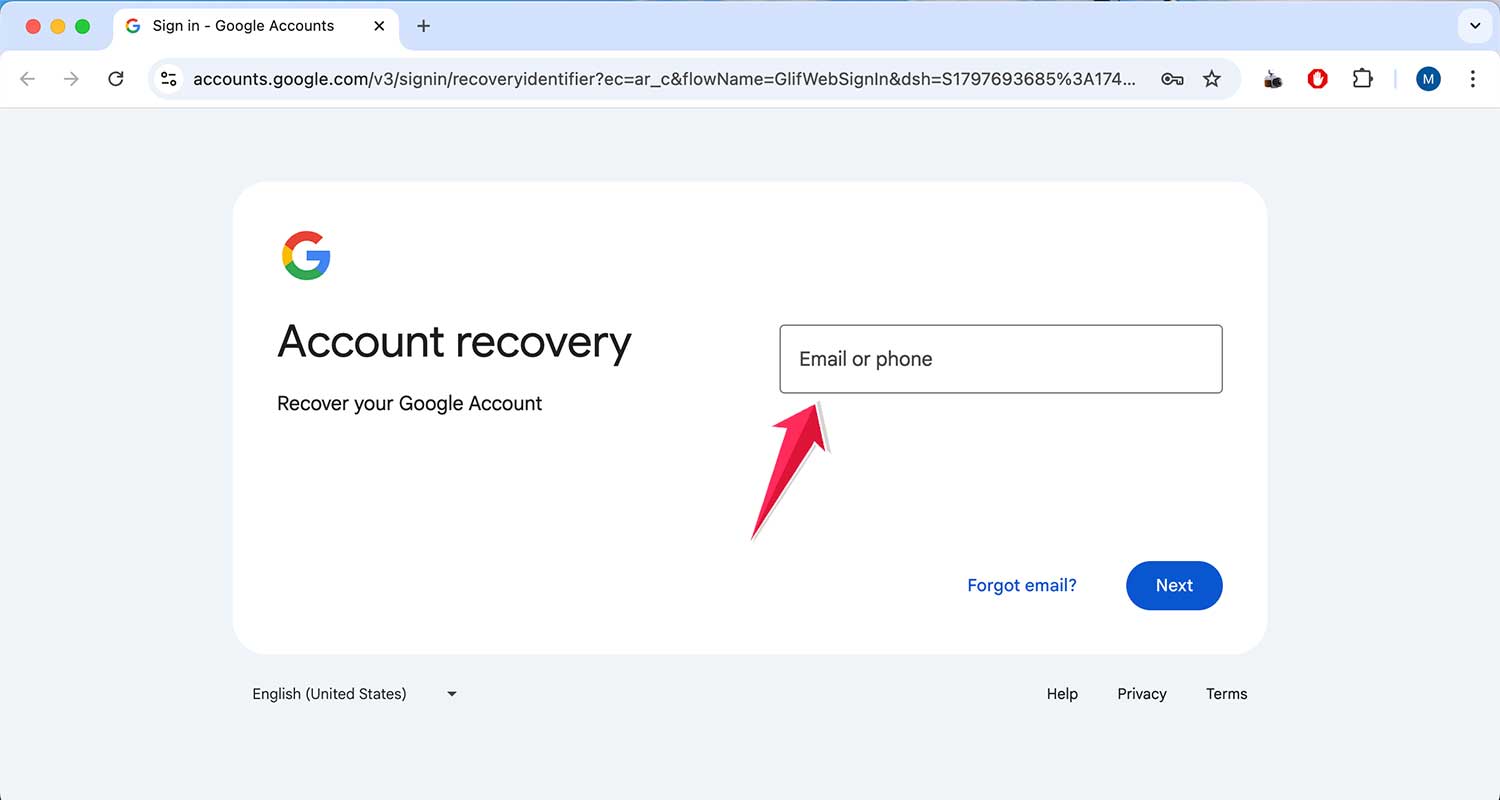
If the account was disabled for security reasons, Google might ask you to go through a few extra steps. Don’t skip them—they’re important for keeping your account safe.
#4 Try switching your internet connection
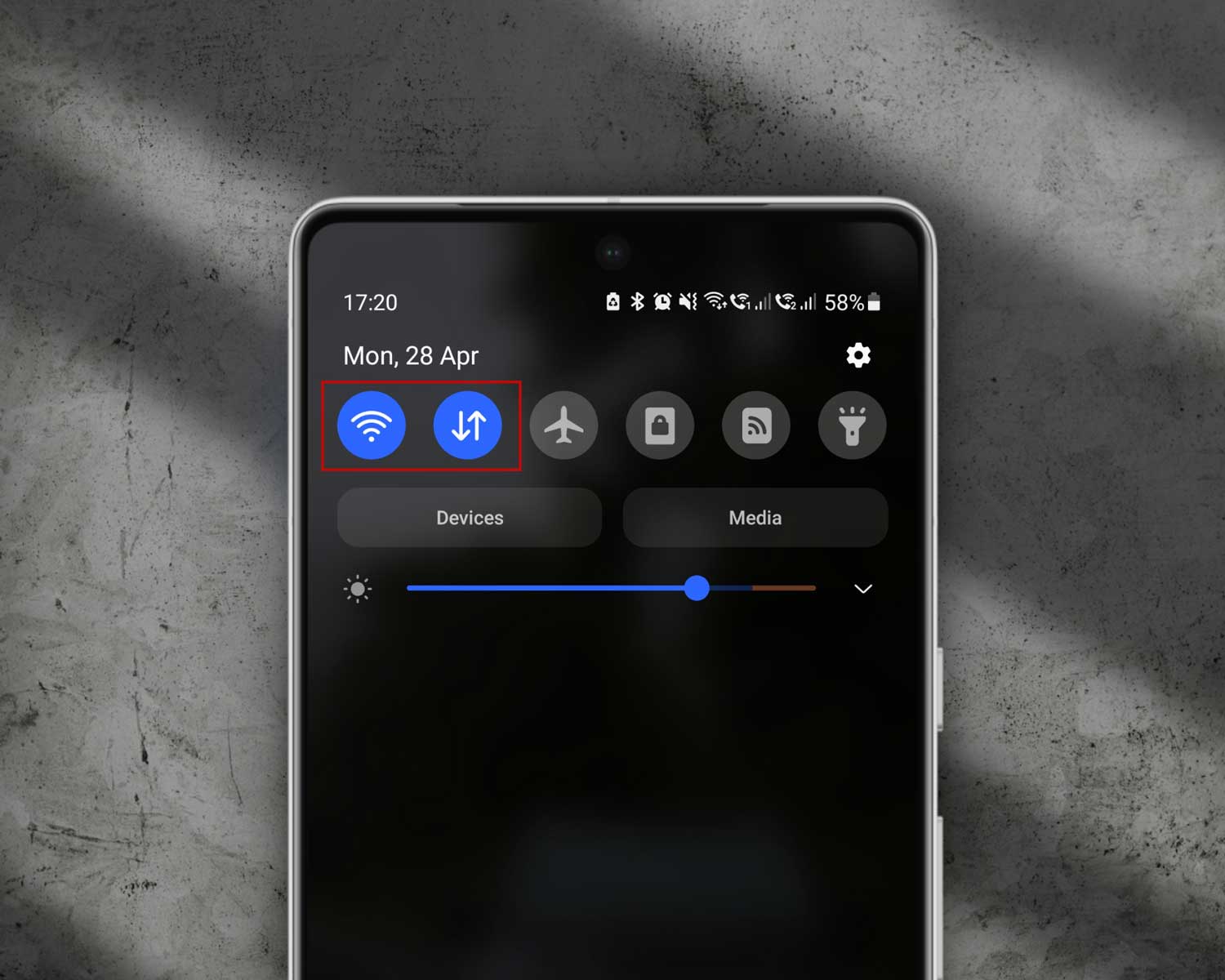
Sometimes, it’s not you—it’s your Wi-Fi. If your connection is unstable, Gmail might not load properly. Let’s try using mobile data instead.
Switch off your Wi-Fi and turn on mobile data. Or try logging in from a different network, like a friend’s hotspot. Then reload the Gmail page and see if it works.
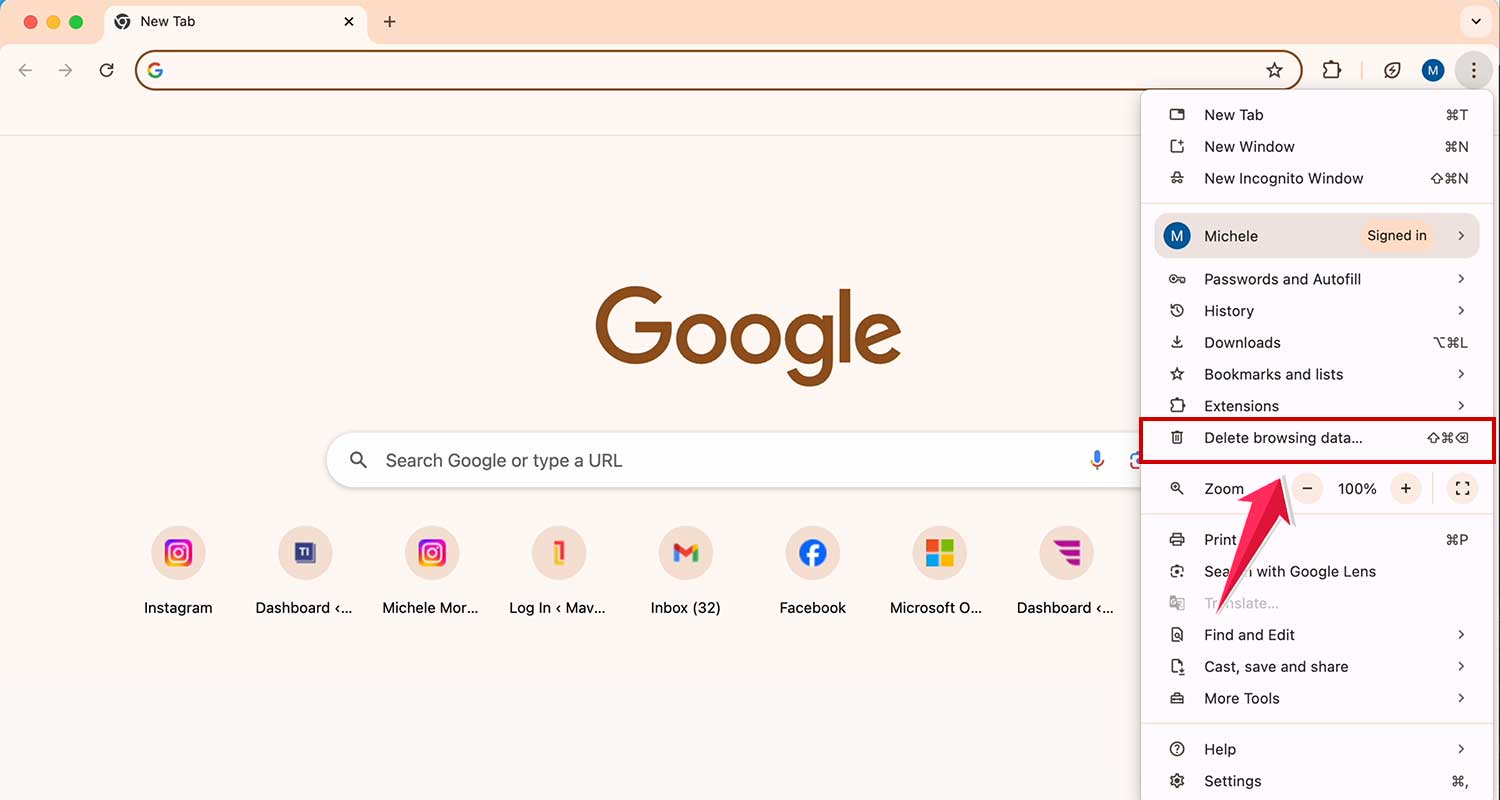
#5 Clear your browser’s cache and cookies
Your browser stores little pieces of data to help pages load faster. But sometimes, these can get in the way. Clearing them gives your browser a clean slate.
Here’s how to clear your cache and cookies:
- Open your browser.
- Find and click on “Delete browsing data”.
- Select “Cookies and cached images”.
- Click “Delete data”, then restart your browser.
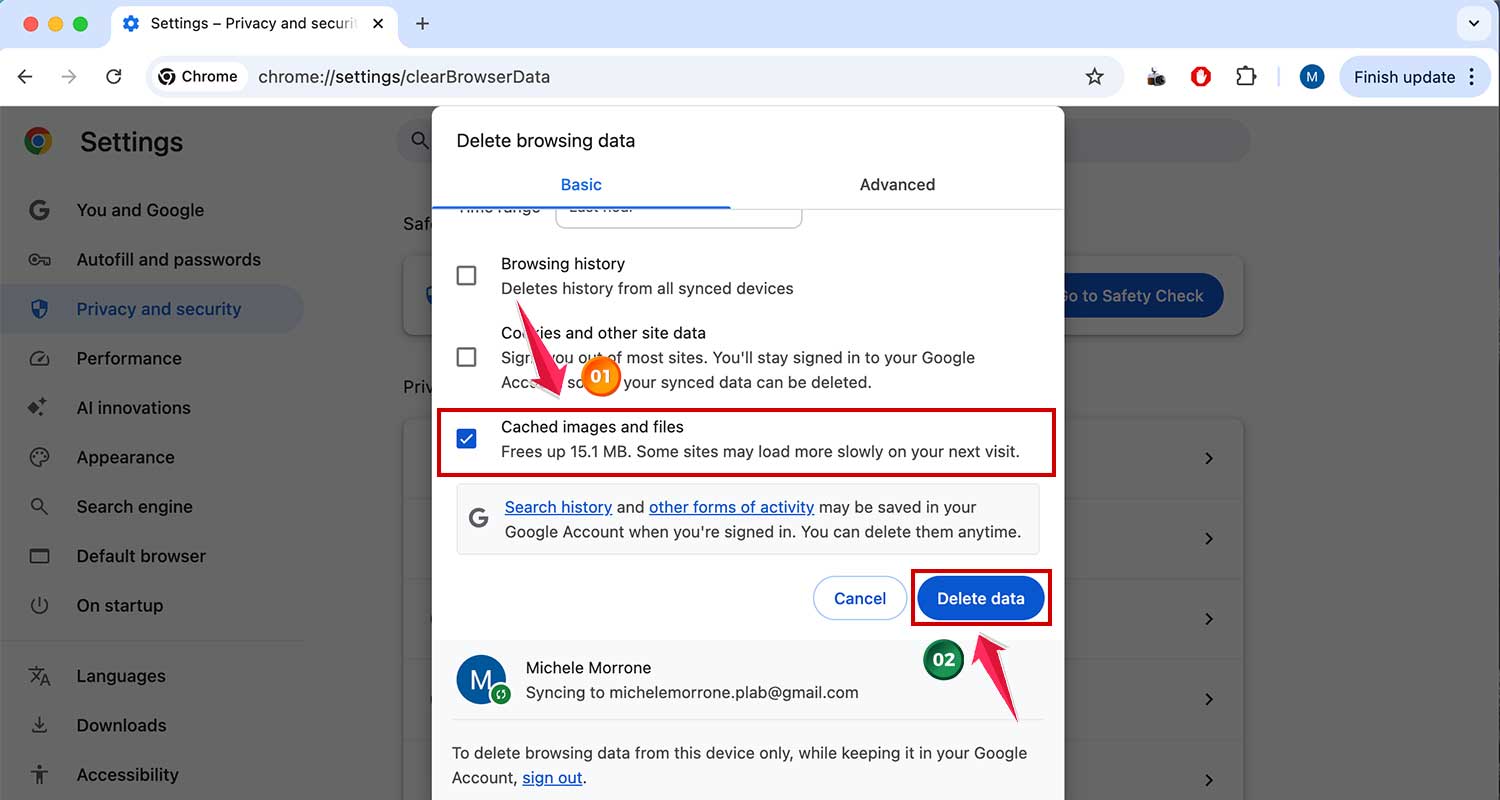
Once that’s done, go back to Gmail and try logging in again. That might just do the trick.
Extra Tips to Keep Your Gmail Safe and Accessible
Now that we’ve handled the problem, let’s prevent it from happening again. These extra tips will keep your Gmail account safe and easy to recover in the future.
1. Keep your recovery info updated
Always make sure your backup email and phone number are current. If you change your number or email, update it in your Google account settings. This makes recovery way easier next time.
2. Use a password manager
Hard to remember passwords? You’re not alone. A password manager can store your logins securely and even fill them in when you need them. It saves time and keeps your accounts safe.
3. Check your account for suspicious activity
Do a quick Google Security Checkup now and then. It shows devices that have accessed your account and helps you spot anything unusual. If something looks off, change your password right away.
4. Be cautious with third-party apps
Only allow apps you trust to access your Google account. Too many apps with access can create security risks. Review app permissions regularly in your account settings.
5. Back up your important emails
Don’t lose what matters. Use Google’s Takeout tool to download your emails or forward key messages to another email. That way, you’ve got a copy just in case.
The Takeaway
Seeing “Account Not Found” can be really stressful. But most of the time, it’s something small—like a typo or a browser issue.
We talked about checking your email address, recovering your account, trying a different internet connection, and clearing your browser’s cache. These steps usually fix the problem fast.
Remember, you’re not alone. These things happen to everyone. What matters is knowing how to fix it—and now, you do. Keep your recovery info updated, use strong passwords, and stay aware of your account activity.
Still stuck? Or maybe you’ve got a question I didn’t cover? Leave a comment below and I’ll help you out. Let’s get your Gmail back on track.