Did you know that the average person uses about 900 emojis per year? That’s a lot of digital expression! But what if you want your emojis to stand out from the crowd?
Many Android users don’t realize they can customize their emoji colors. It’s a simple way to add a personal touch to your digital conversations. The default emoji set might not always reflect your style or preferences, which can make your messages feel less personal.
This issue often occurs because people aren’t aware of the customization options available on their Android devices. They stick with the default keyboard and emojis, missing out on the opportunity to make their digital communication more vibrant and unique.
In this guide, we’ll walk you through some easy steps using popular keyboard apps like Google Gboard.
How to change your default emoji skin tone on Android
When you use emojis in your messages, you want them to represent you. Changing the default skin tone of your emojis is a simple way to make your digital communication more personal. Here’s how you can do it:
Using Google Gboard
Google Gboard is a popular keyboard app that comes pre-installed on many Android phones. If you don’t have it, you can easily download it from the Play Store. Here’s how to use it to change your emoji skin tones:
- Open any app where you can type like Keep Notes, WhatsApp etc.
- Tap the emoji icon on your keyboard.
- Look for emojis with a small arrow – these are the ones you can customize.
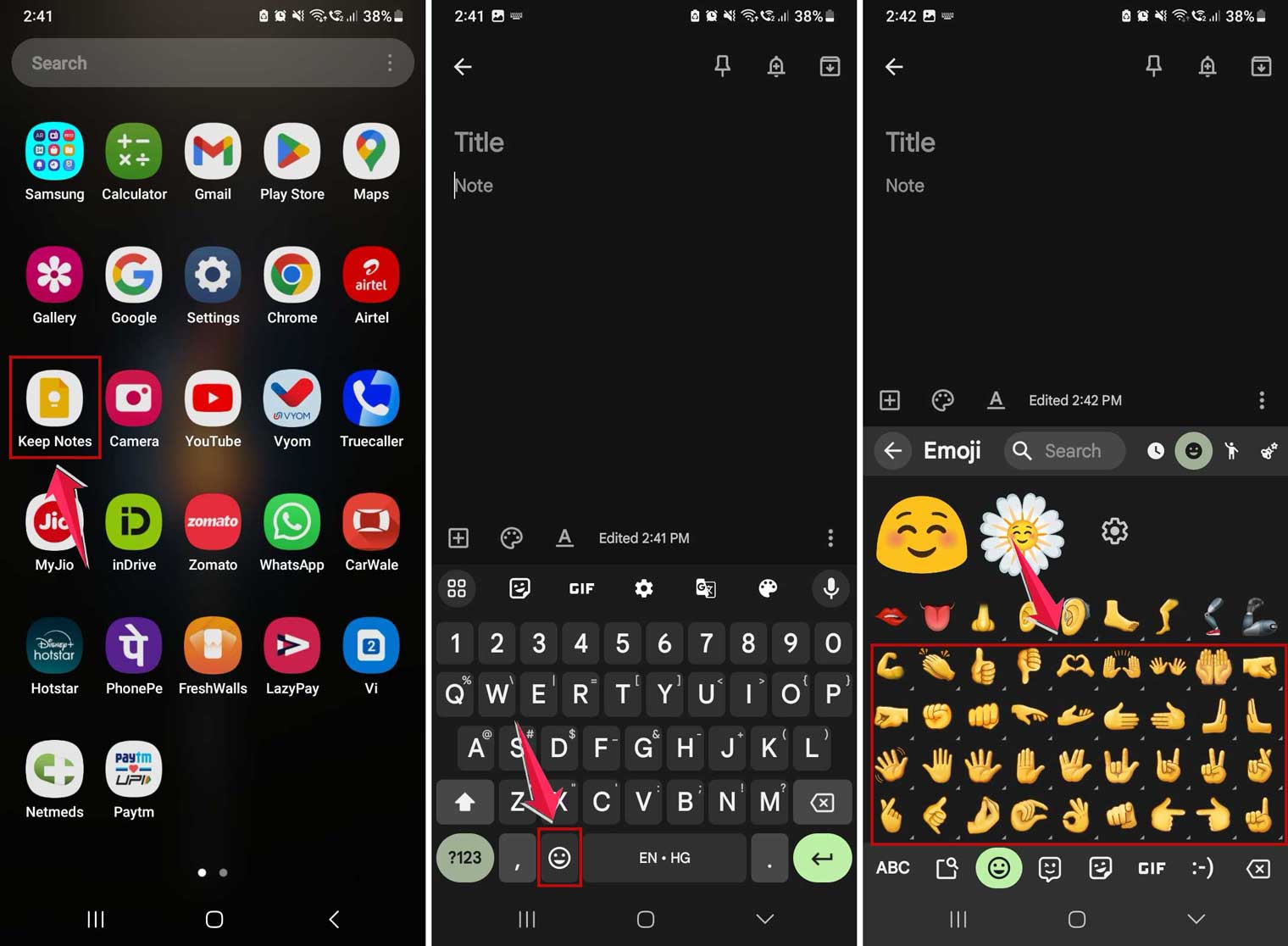
- Press and hold one of these emojis.
- Choose the skin tone you prefer from the options that appear.

That’s it! Your chosen skin tone will now be the default for all customizable emojis.
Using other messaging apps
Some popular messaging apps like WhatsApp, Facebook Messenger, and Twitter have built-in options to change emoji skin tones. Here’s the general process:
- Open the app you want to use.
- Tap the emoji icon in the message compose area.
- Find an emoji that can be customized.
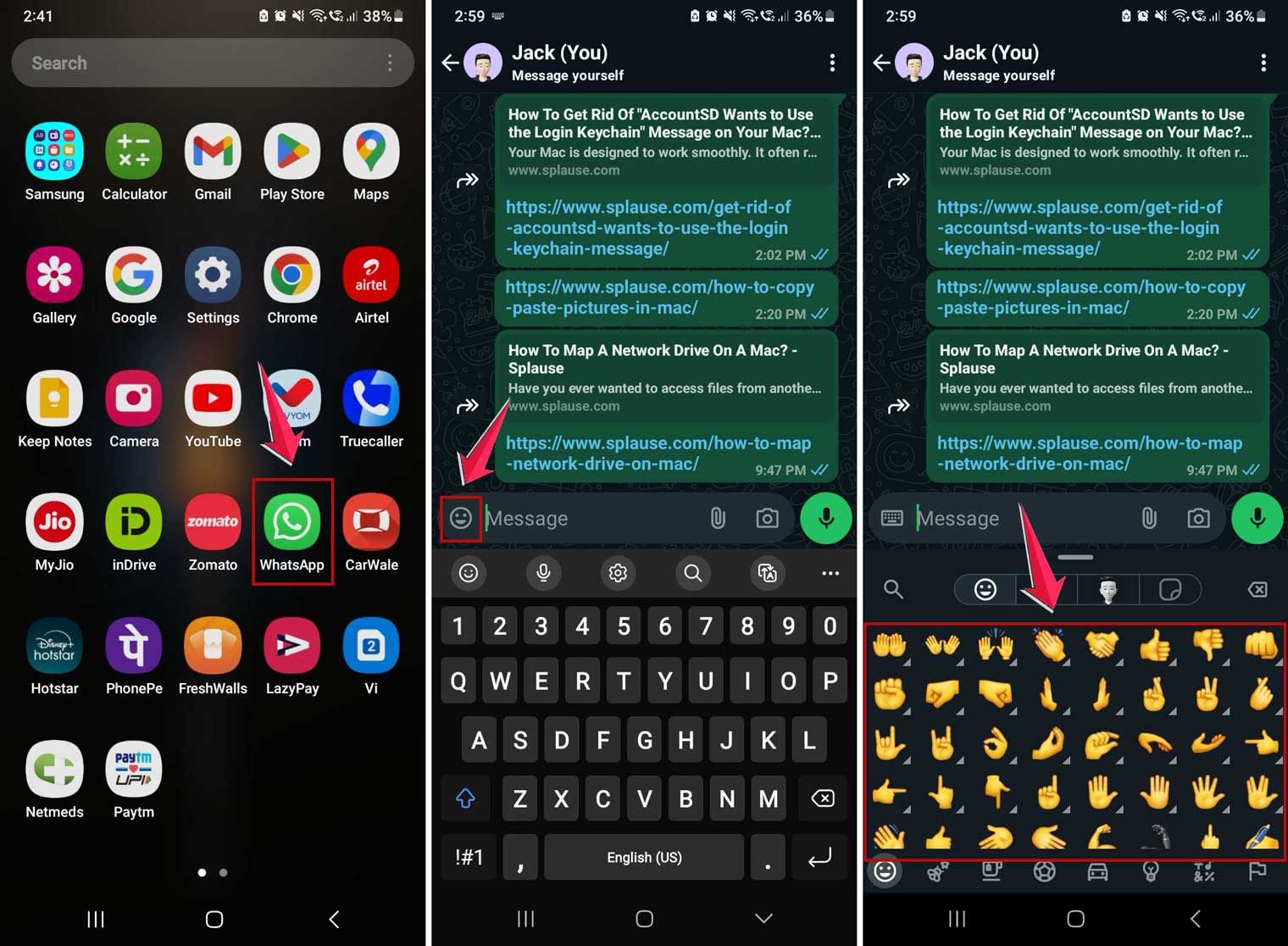
- Press and hold the emoji.
- Select your preferred skin tone from the options shown.

Remember, the skin tone you choose in these apps will only apply within that specific app.
Why are emojis yellow?
Have you ever wondered why most emojis are that cheerful yellow color? There’s actually a good reason behind it.
Yellow isn’t just a random choice for emojis. It’s often called the color of happiness. Think about it – what comes to mind when you picture yellow? Probably things like:
- Bright sunshine.
- Cheerful daffodils.
- Cute little ducklings.
These are all pretty happy images, right? That’s exactly why yellow was chosen for emojis. It’s a universal symbol of joy and positivity.
Another reason emojis are yellow is that they serve as a neutral base. Yellow doesn’t represent any specific skin tone, so it’s a good starting point before customization. This way, emojis can be inclusive right from the start.
How to update emojis on your Android phone
Keeping your emojis up-to-date means you’ll always have the latest and greatest ways to express yourself. Here’s how you can make sure your Android phone has the most recent emoji set:
Update your phone’s software
Google regularly releases new emojis with system updates. To get these:
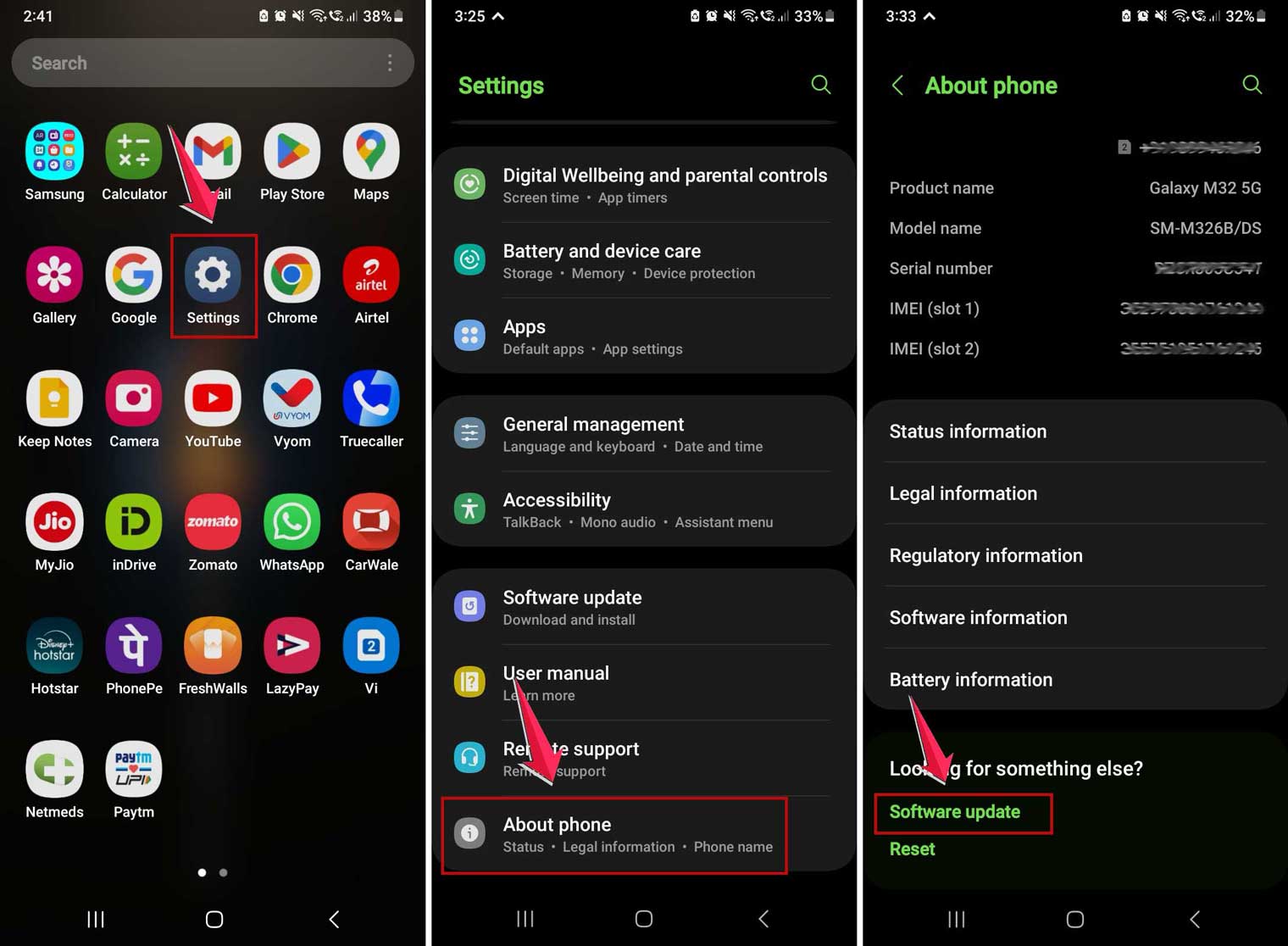
- Open your phone’s Settings app.
- Scroll down and tap About phone.
- Tap System updates or Software updates.
- To check for an update is available or not, you’ll see an option download and install, tap on it.
- If an update is available then follow the prompts to complete the update.
- If not, it will show you that your phone is up to date
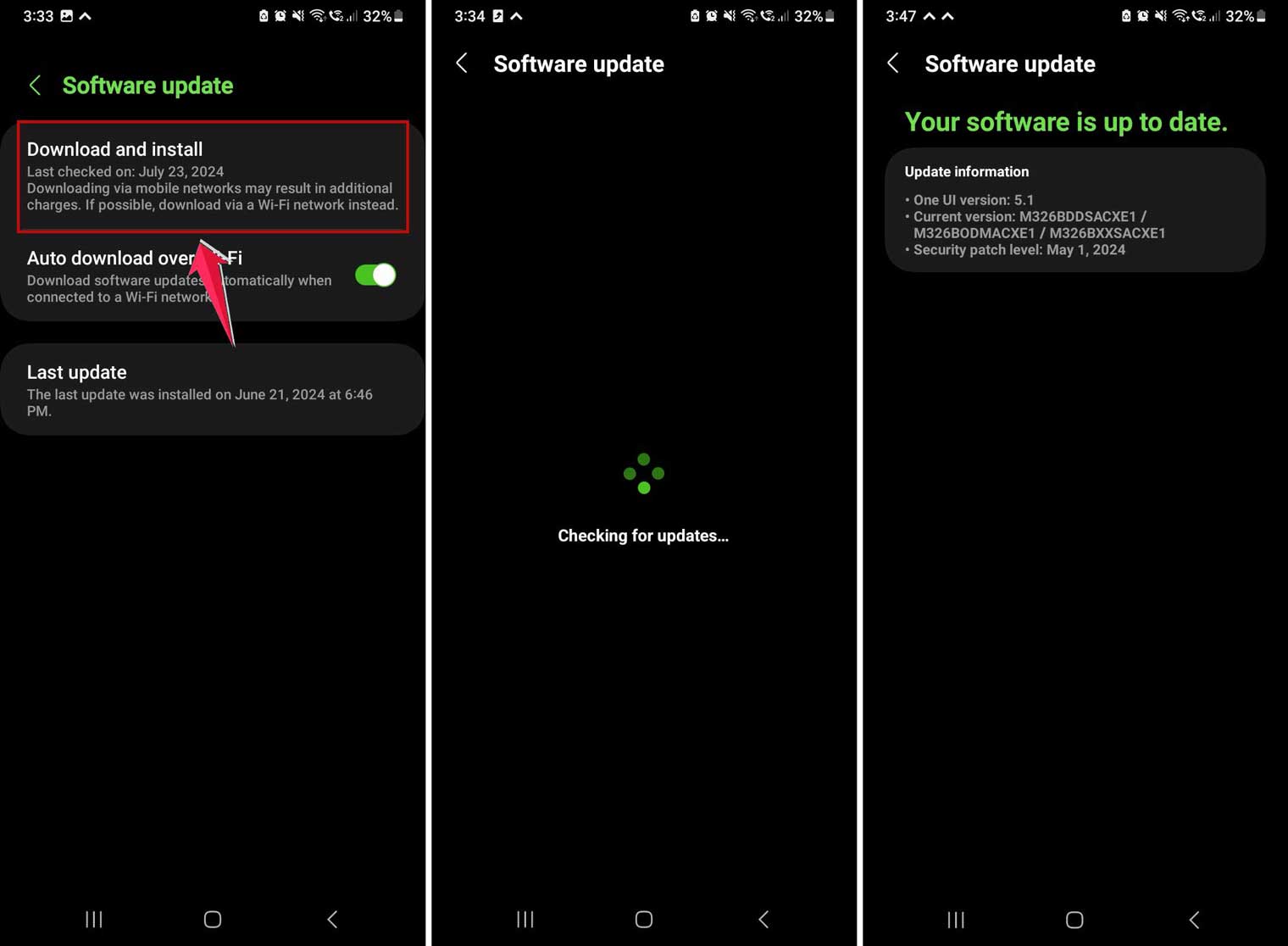
Remember, updating your phone can take some time, so it’s best to do this when you don’t need to use your device for a while.
Try out Emoji Kitchen in Gboard
While not exactly an update, Emoji Kitchen is a fun feature in Google’s Gboard that lets you create unique emoji combinations. Here’s how to use it:
- Make sure you have Gboard installed and set as your default keyboard.
- Open any messaging app.
- Tap the emoji button on your keyboard.
- Select an emoji, then tap it.
- You’ll see a variety of emoji mashups appear above your keyboard.
- Tap on any of these to send them as stickers.
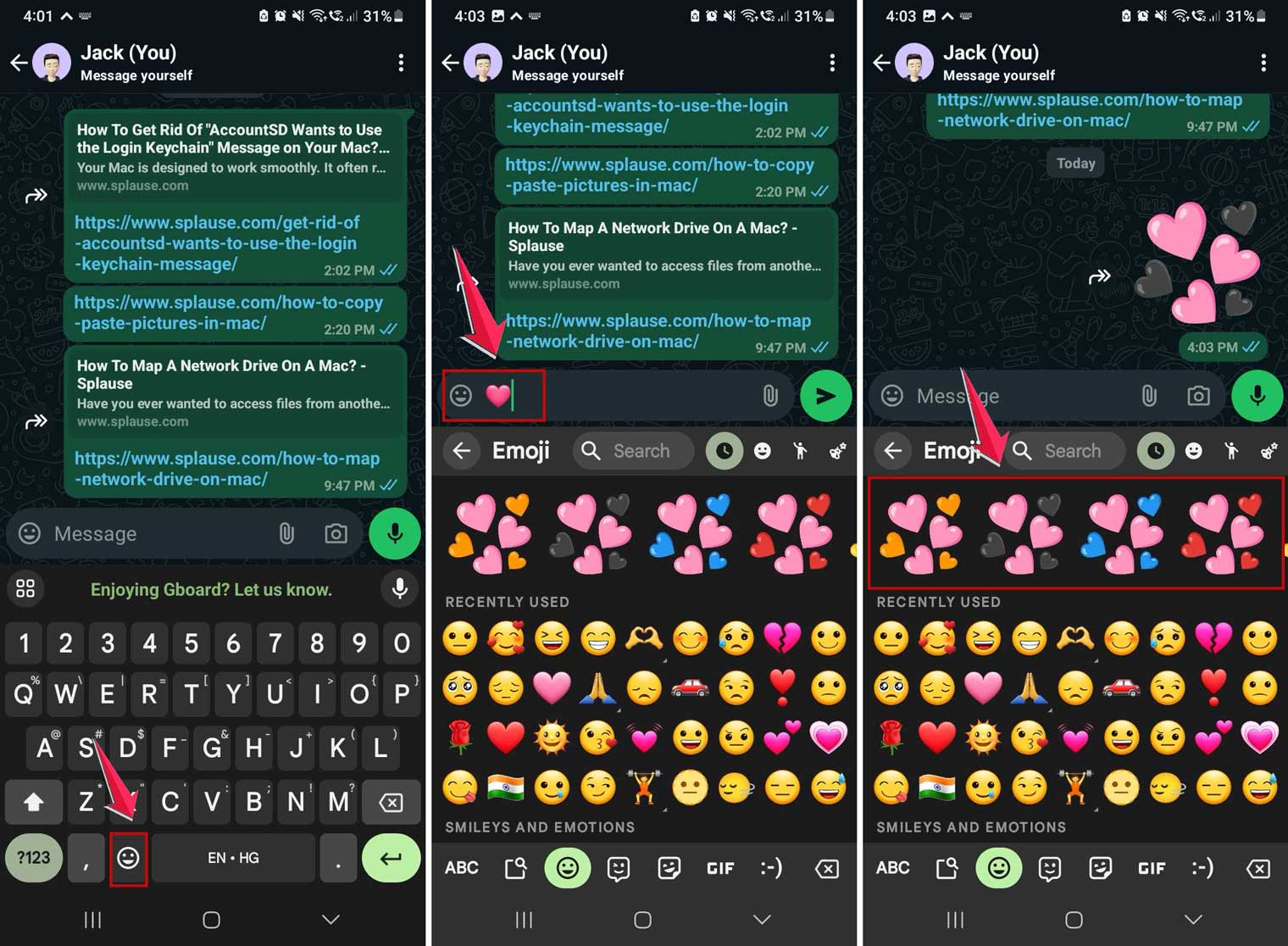
This feature allows you to create and send fun, unique emojis even if you don’t have the very latest update.
Keep WhatsApp, Facebook or Instagram updated for the latest emojis
Some apps, like WhatsApp or Facebook Messenger, have their own emoji sets. To make sure you have their latest emojis:
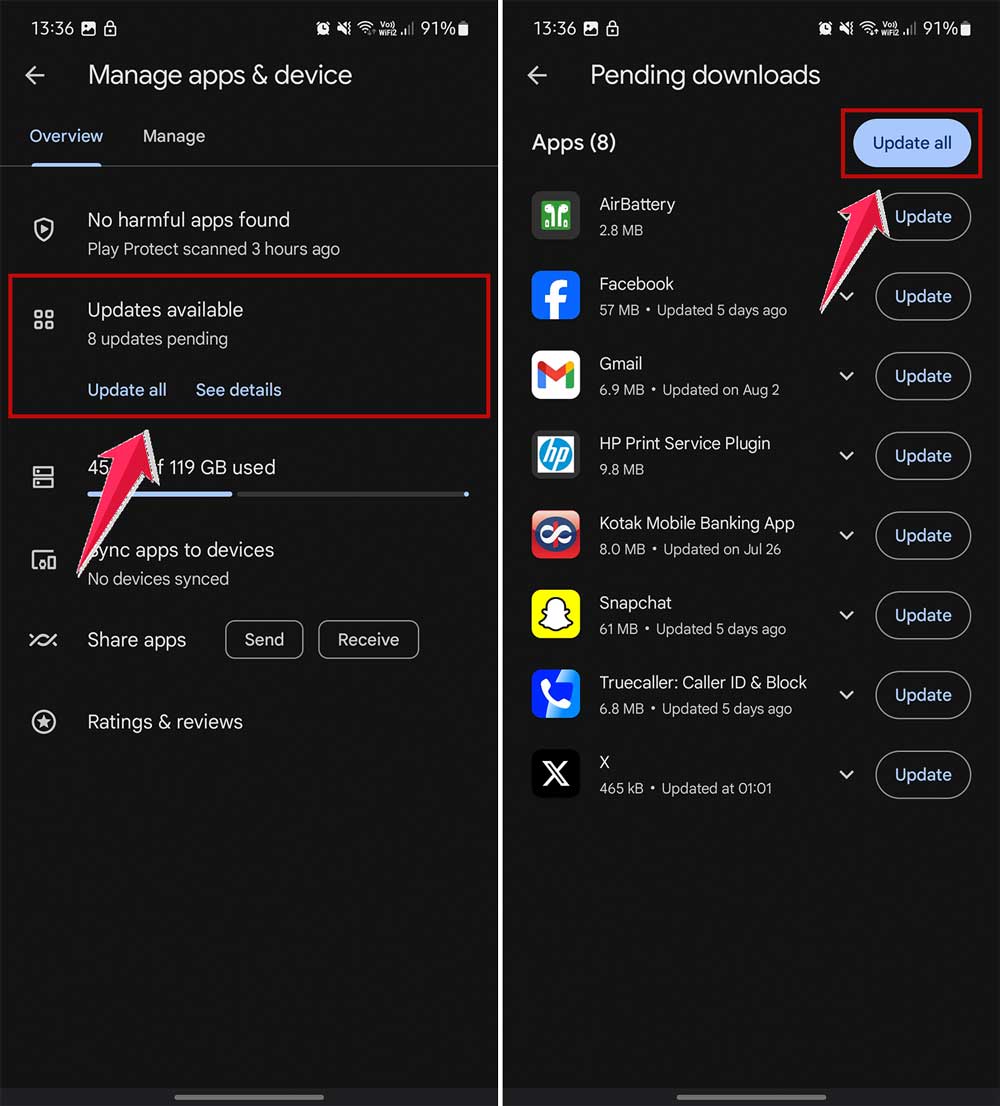
- Open the Google Play Store.
- Tap your profile icon, then go to Manage apps & device.
- If updates are available, you’ll see an option to Update all.
Can you make your Android emojis look like iPhone ones?
You bet! Many Android users love the look of iPhone emojis. Here’s what you need to know:
You can give your keyboard an iPhone emoji makeover with special themes. But these emojis will only look like iPhone ones on your device. When you send them to friends, they’ll see the standard Android versions.
If you’re looking for a good option, try the OS11 emoji switcher. It’s a popular choice, and it is free and easy to use.
Can Android phones receive Animojis?
Animojis are those fun, animated emoji characters. Good news – your Android can receive them! They’re essentially short video clips, so they’ll play just fine on your Android device.
The catch? You can’t create Animojis on an Android phone. That’s a feature Apple keeps for its own devices, at least for now.
Why are you seeing boxes instead of emojis?
Ever seen little boxes where emojis should be? Here’s why that happens:
- The emojis might be too new for your Android version.
- The sender might have a newer phone or a different operating system.
- Your phone’s emoji set might need an update.
It’s like your phone is missing the latest emoji dictionary. To fix this, try updating your phone’s software or your keyboard app.
Remember, the world of emojis is always evolving. Keeping your phone updated is the best way to ensure you’re always seeing the latest and greatest in emoji communication!
The takeaway
Customizing your emojis on Android is easier than you might think. With tools like Google Gboard, you can change emoji colors and even create unique combinations. The key is to keep your phone and apps updated to access the latest emoji features.
Remember, while you can make your emojis look like iPhone ones on your device, they’ll appear as standard Android emojis to others. This doesn’t mean your emojis are less expressive – it’s just how different systems interpret them.
A common misconception is that Android devices can’t receive special emojis like Animojis. In fact, they can receive them as video files, even if they can’t create them.
The most important takeaway? Have fun with your emojis! They’re a great way to add personality to your messages. Whether you’re changing colors, trying out Emoji Kitchen, or just staying up-to-date with the latest releases, emojis are all about expressing yourself in the digital world.
We’d love to hear your thoughts! How do you use emojis to spice up your messages? Share your favorite emoji trick in the comments below.